Table of Contents
Users granted manager access in the Learning platform are responsible for ensuring that educators in the school or district create their accounts and complete assigned coursework, which may be required in preparation for live virtual sessions.
Managers provide accountability for the school or district’s asynchronous learning offerings. The Learning platform provides built-in support to help these users monitor educators’ progress.
Note: Managers cannot manage platform users or course assignments. Contact 95 Percent Group Support for assistance.
Login
Once you have created your Learning account and been assigned as a manager, you can access the platform at any time.
To learn more about logging in, reference our article on Accessing Asynchronous Learning.
Accessing Assigned Courses
Managers may have assigned coursework to complete alongside the learners they are tasked with monitoring.
The steps to access asynchronous learning differ between learners and managers. Learners default to their available courses upon login, while managers default to the manager dashboard.
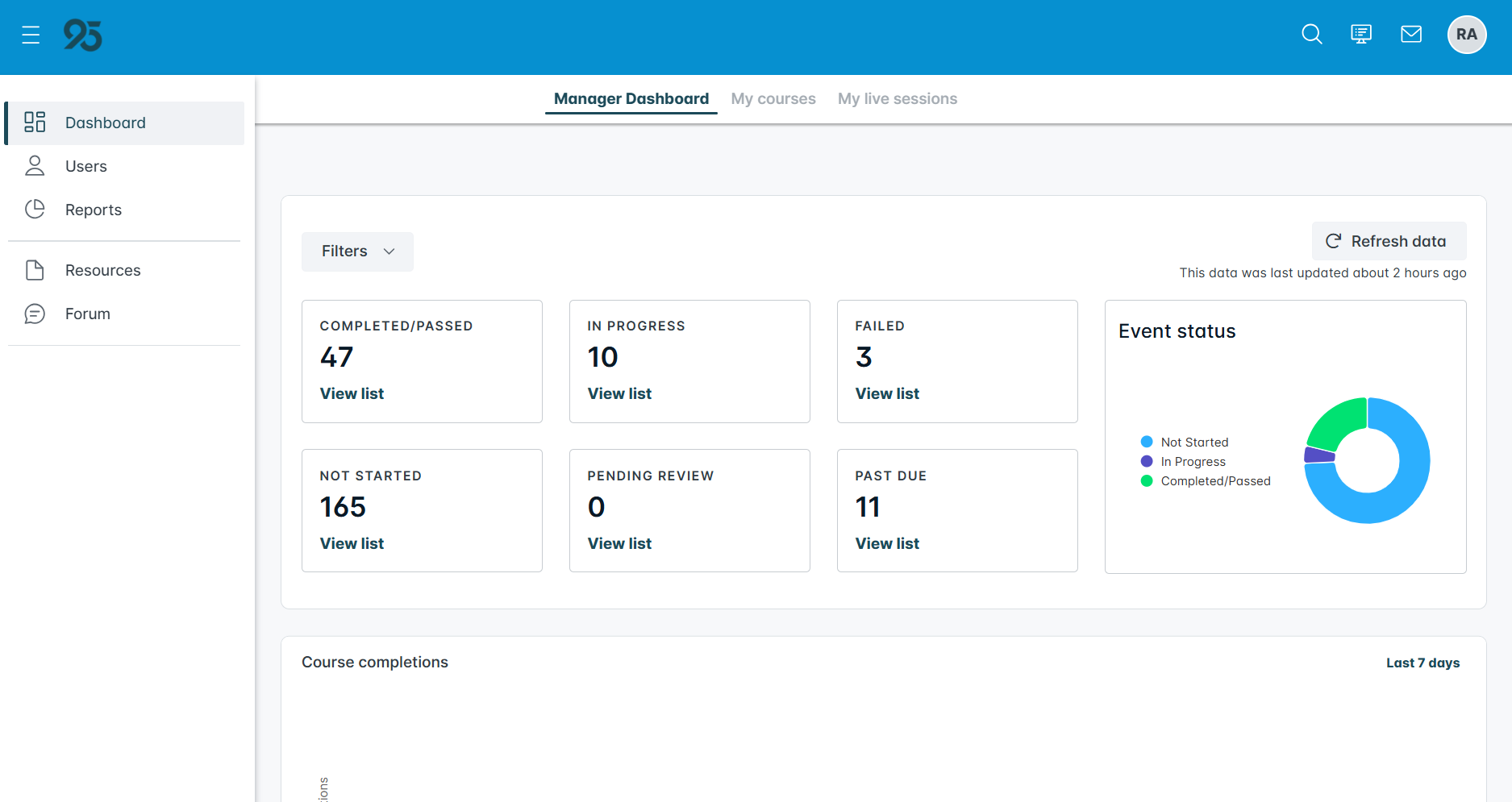
From there, managers will navigate to the My learning tab to view all assigned courses and learning paths.
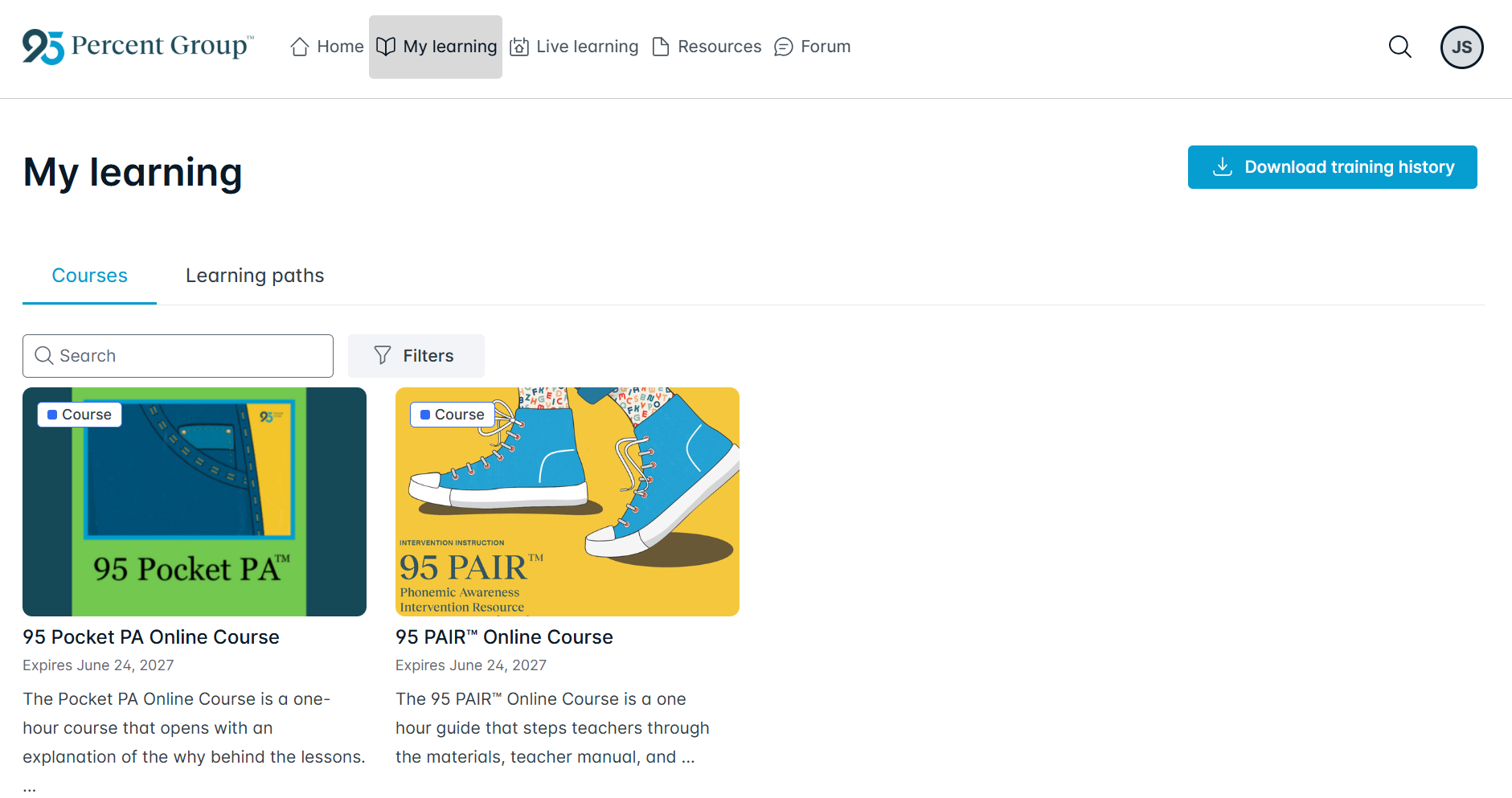
Click on each one to launch it.
Resources and Forum
The Resources and Forum pages complement enrolled courses.
- The Resources page contains supplementary resources available outside the courses.
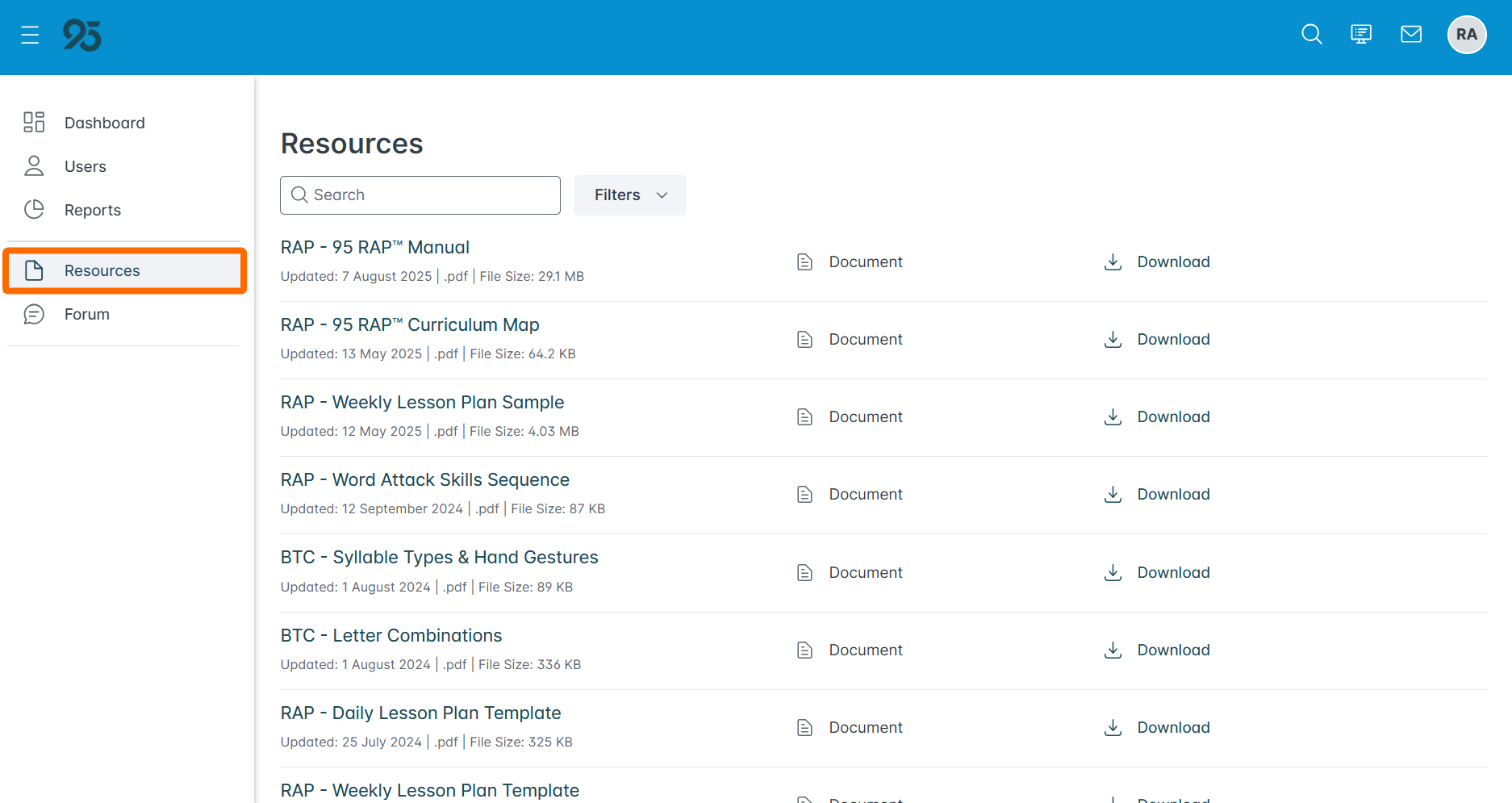
Access the Resources page by selecting Resources in the menu at the top of the page.
- The Forum page is an online forum for educators to discuss course topics, courses, and/or learning paths.
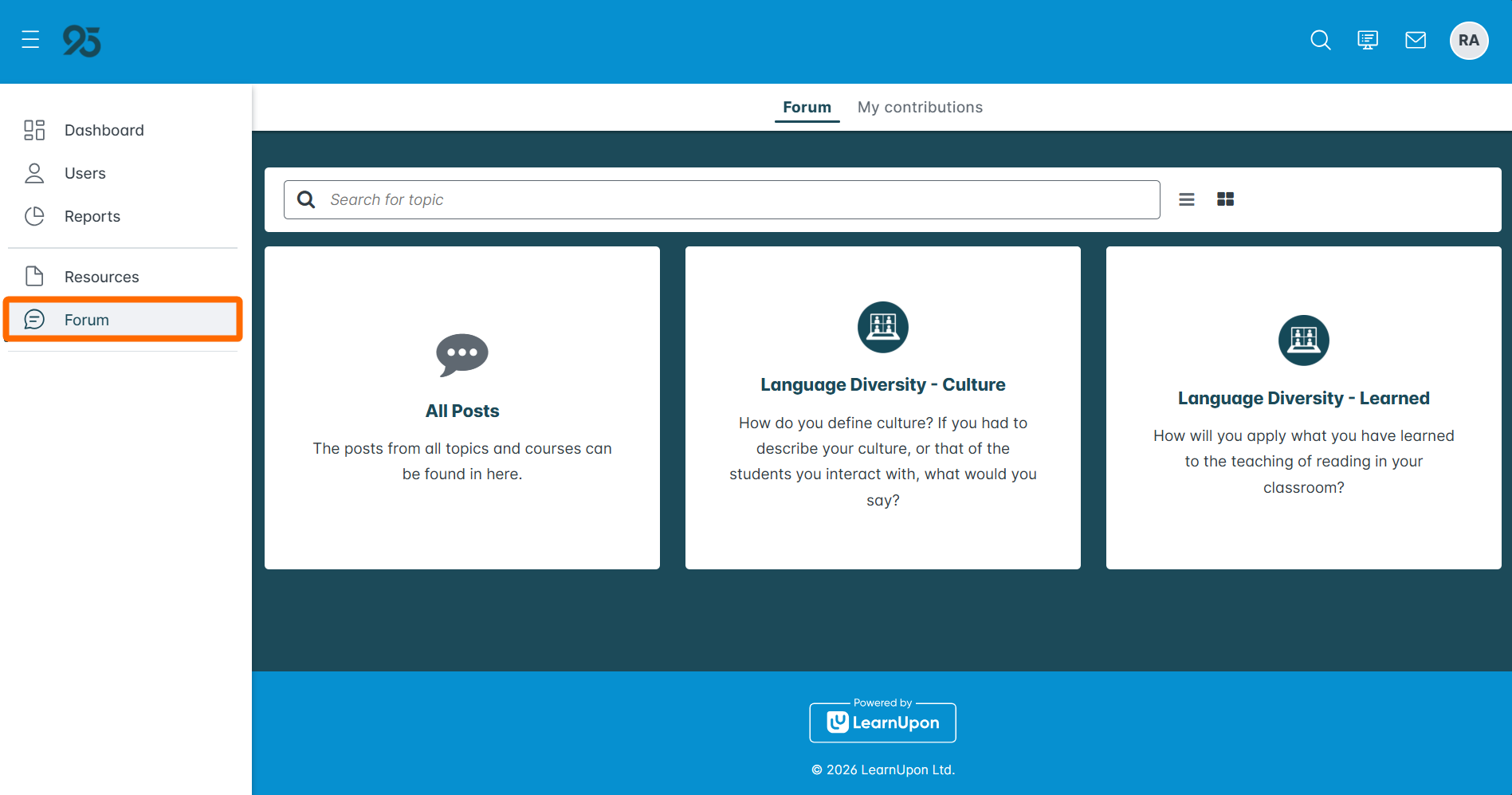
This page may be disabled based on each manager's course enrollments.
Monitoring Course Progress
Managers have exclusive access to the manager dashboard, which enables monitoring course progress across groups and drilling down into groups or individual users.
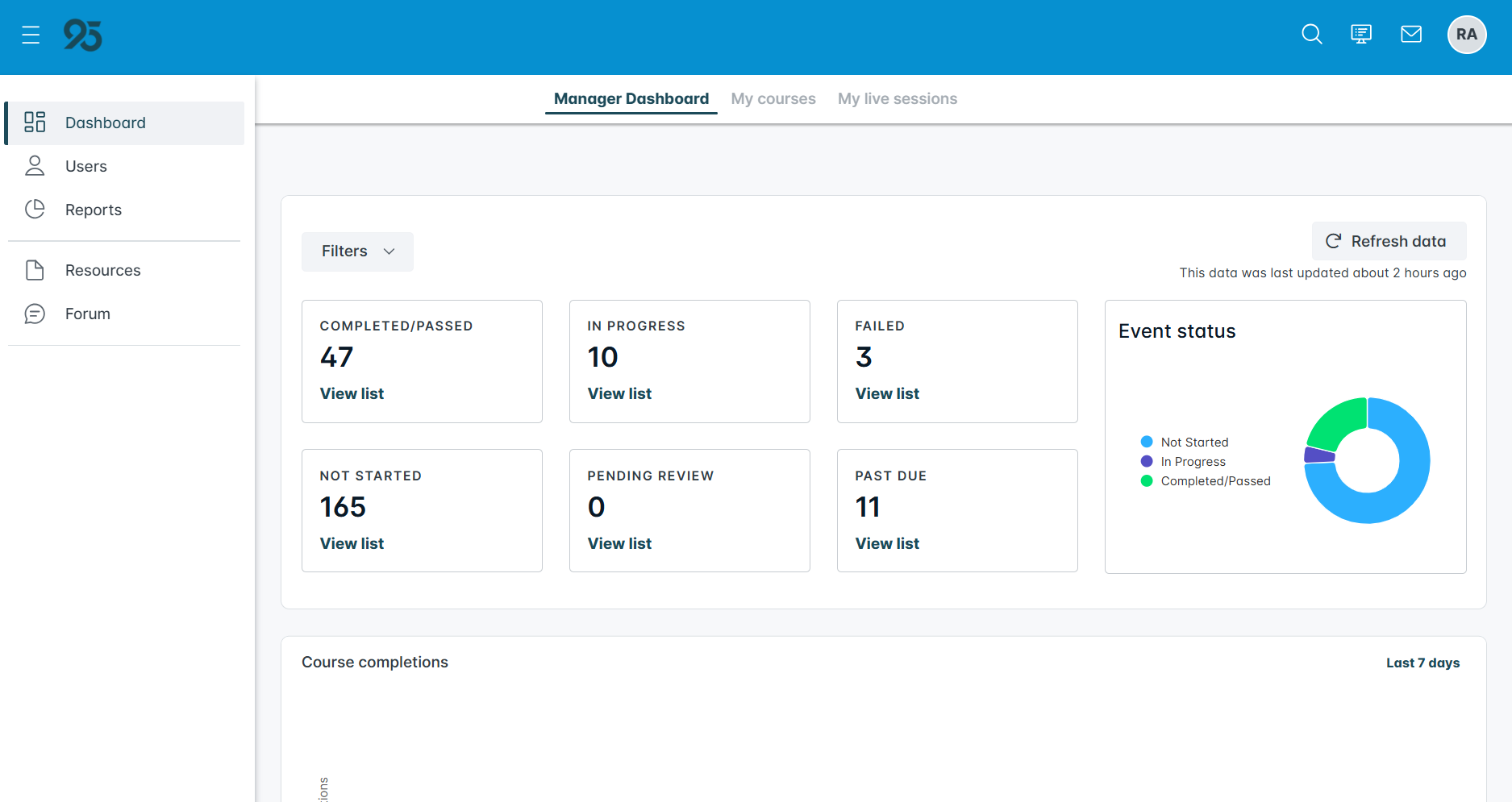
Access the manager dashboard by selecting Manager Dashboard from the navigation panel.
Dashboard Data
The manager dashboard allows managers to view learning progress at a glance.
The dashboard is divided into two sections: course summary cards along with the Event status progress chart, and the Course completions graph.
Course Cards and Event Status
The cards at the top of the page summarize the number of learners in each course status.
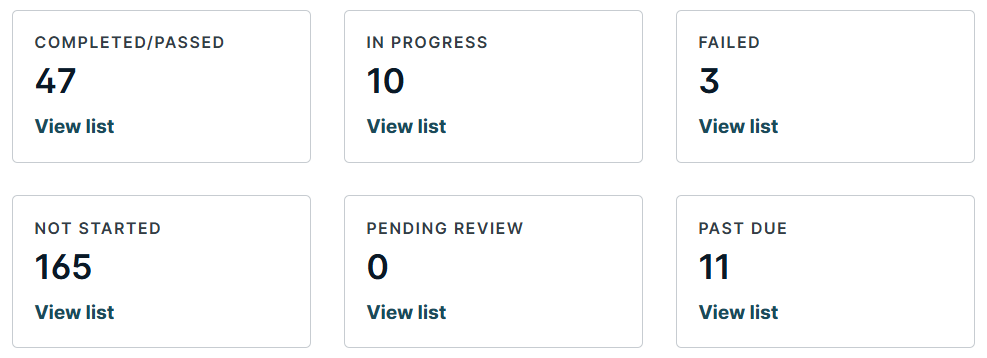
Click View list in each card to view the list of educators and the related course.
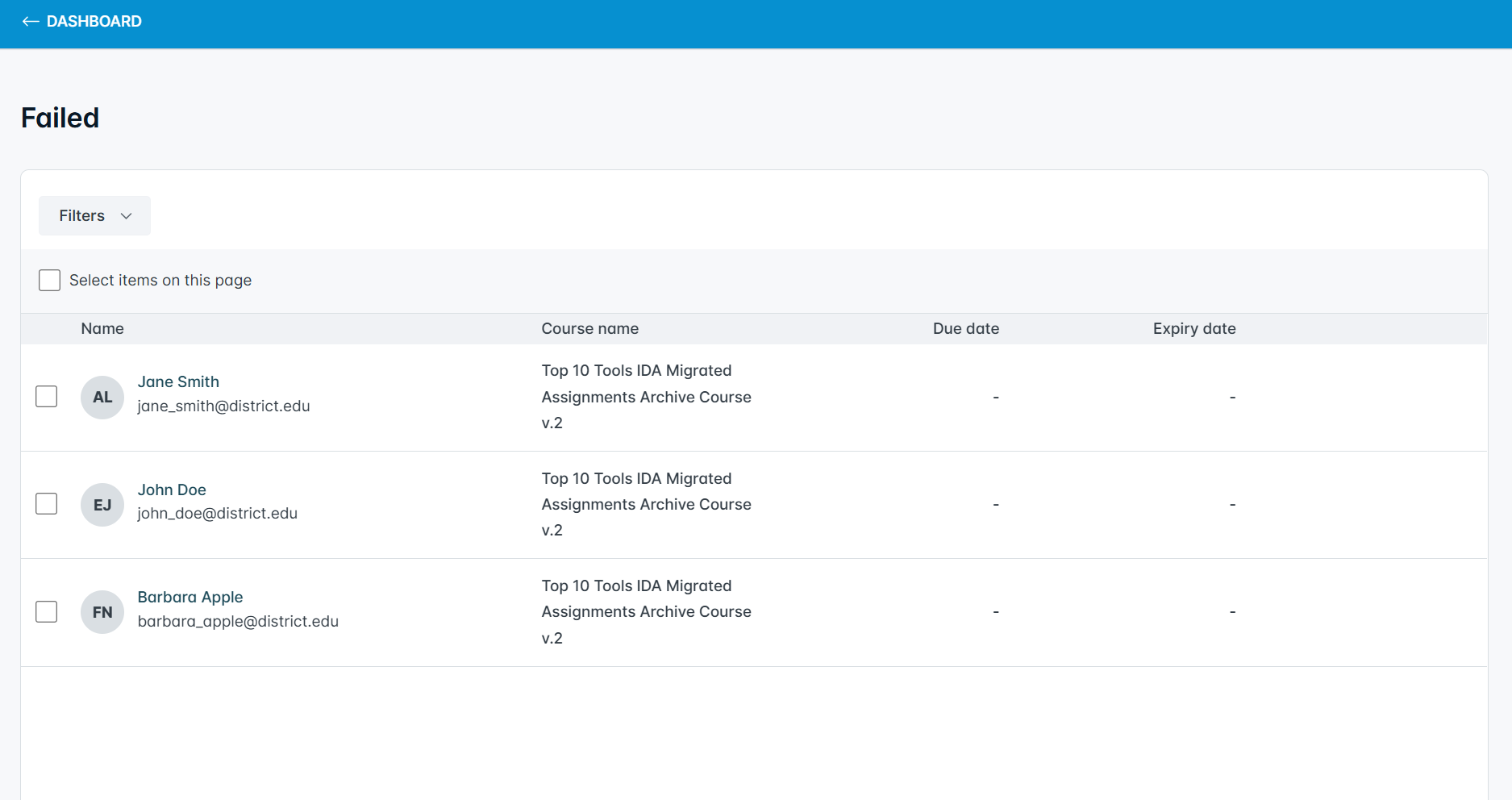
From here, drill down into individual courses, groups, and/or user statuses by clicking the Filters button. Drill down into individual users by clicking their names.
Mark the checkboxes next to one or more educators, then click Send message to send a reminder message via the Learning platform to complete their training. This can be helpful for learners in the in-progress and not-started course statuses, especially as course expiration dates approach.
On the manager dashboard, the Event status progress chart visualizes the learners in the most important course statuses: not started, in progress, and completed/passed.
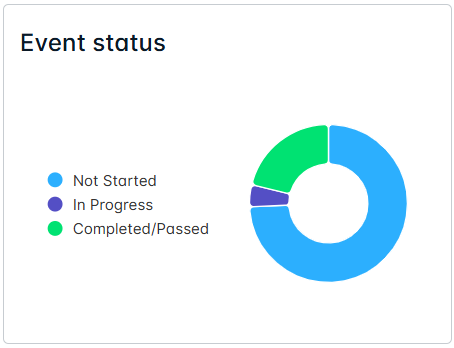
Hover over each segment to view the number of learners in each status.
Filtering and Refreshing Data
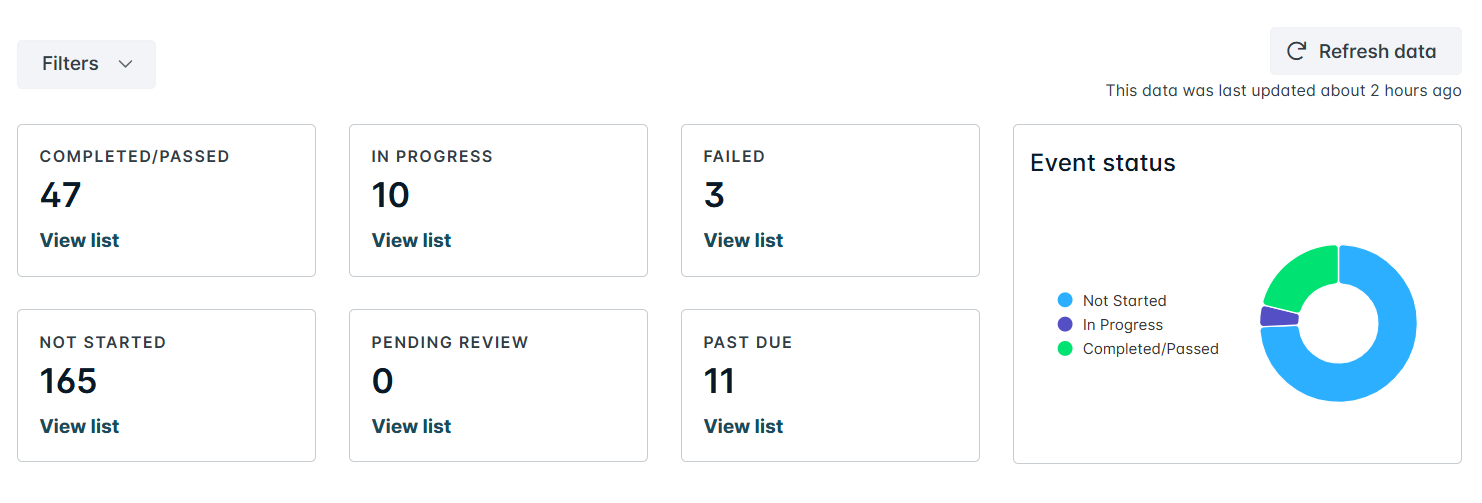
Click the Filters button above the course summary cards to filter the data considered in the course cards and Event status progress chart.
Status data is updated every four hours by default. Click Refresh data to access current data.
Course Completions
The Course completions section at the bottom of the page displays a graph that visualizes course completions across the school or district over the last seven days.
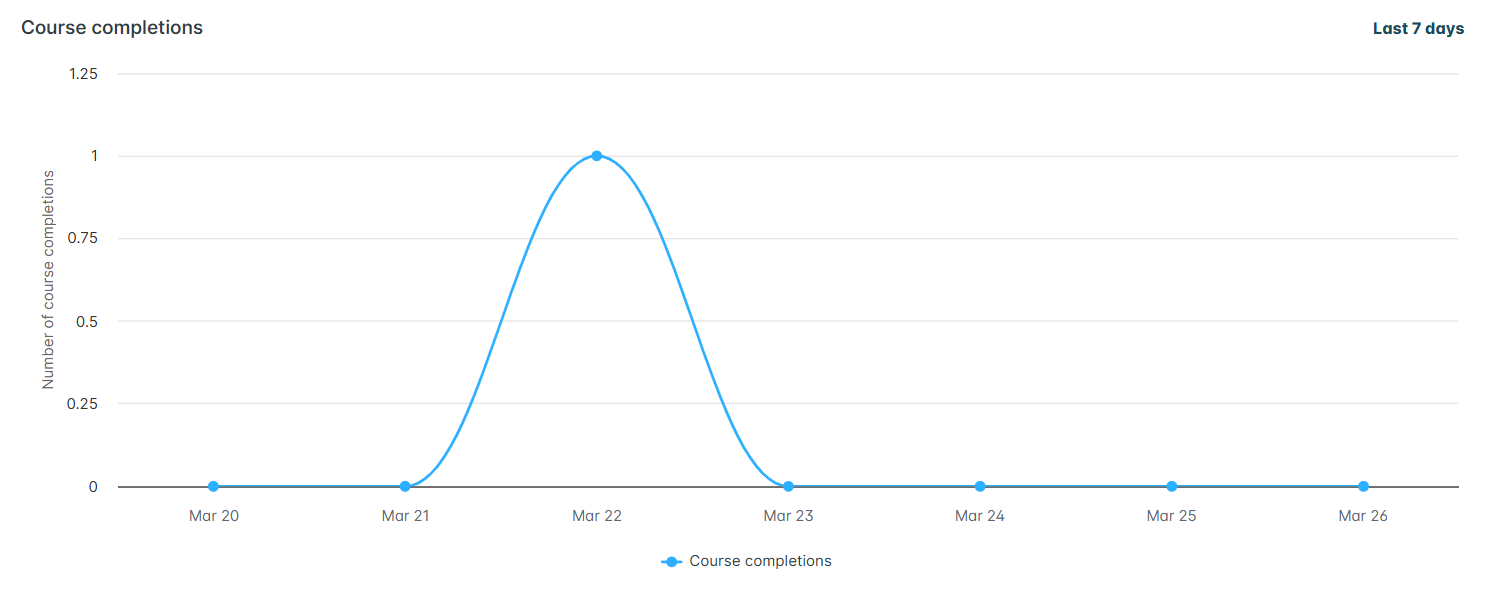
Click Last 7 days to change the date range considered, up to the last 365 days.
Missing Educators
The manager dashboard only reflects the data of educators who have created their Learning platform accounts. If someone is missing from the dashboard, this likely indicates they have not yet accepted their email invitation and created an account.
It is advisable to contact these educators and request that they find and accept their Learning platform invitations. Invitations are sent from learning@one95.app.
Contact 95 Percent Group Support if an educator has accepted their invitation, but their data is not included in the dashboard.
Reporting
While the manager dashboard provides insight into everyone you are assigned, reports provide insight into one or more educators you want to drill into.
Reporting features are available from the Reports page to summarize and download progress-monitoring information for district- or school-wide visibility.
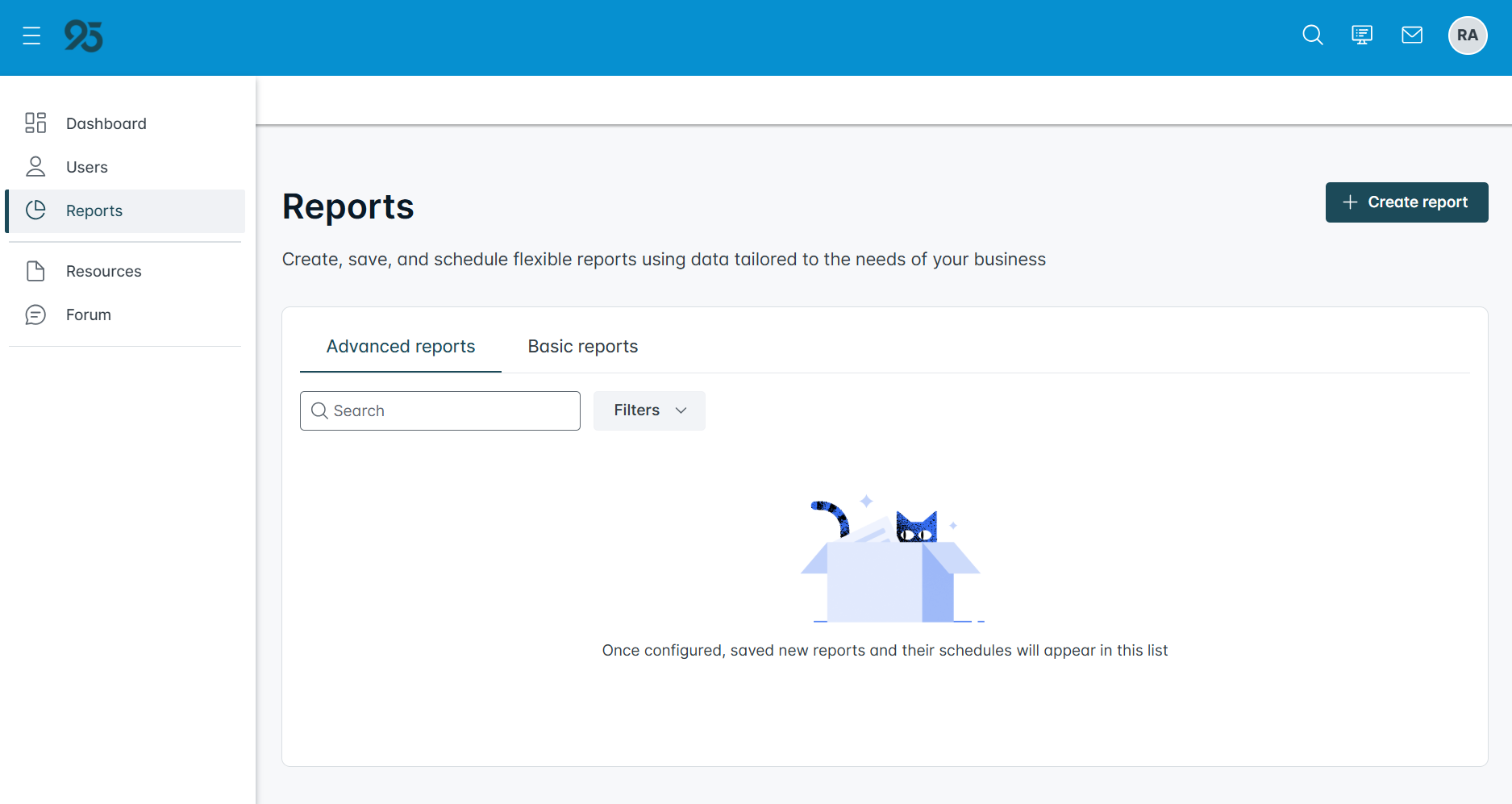
Access the Reports page by selecting Reports from the navigation panel.
Create new reports by clicking Create report in the upper right-hand corner.
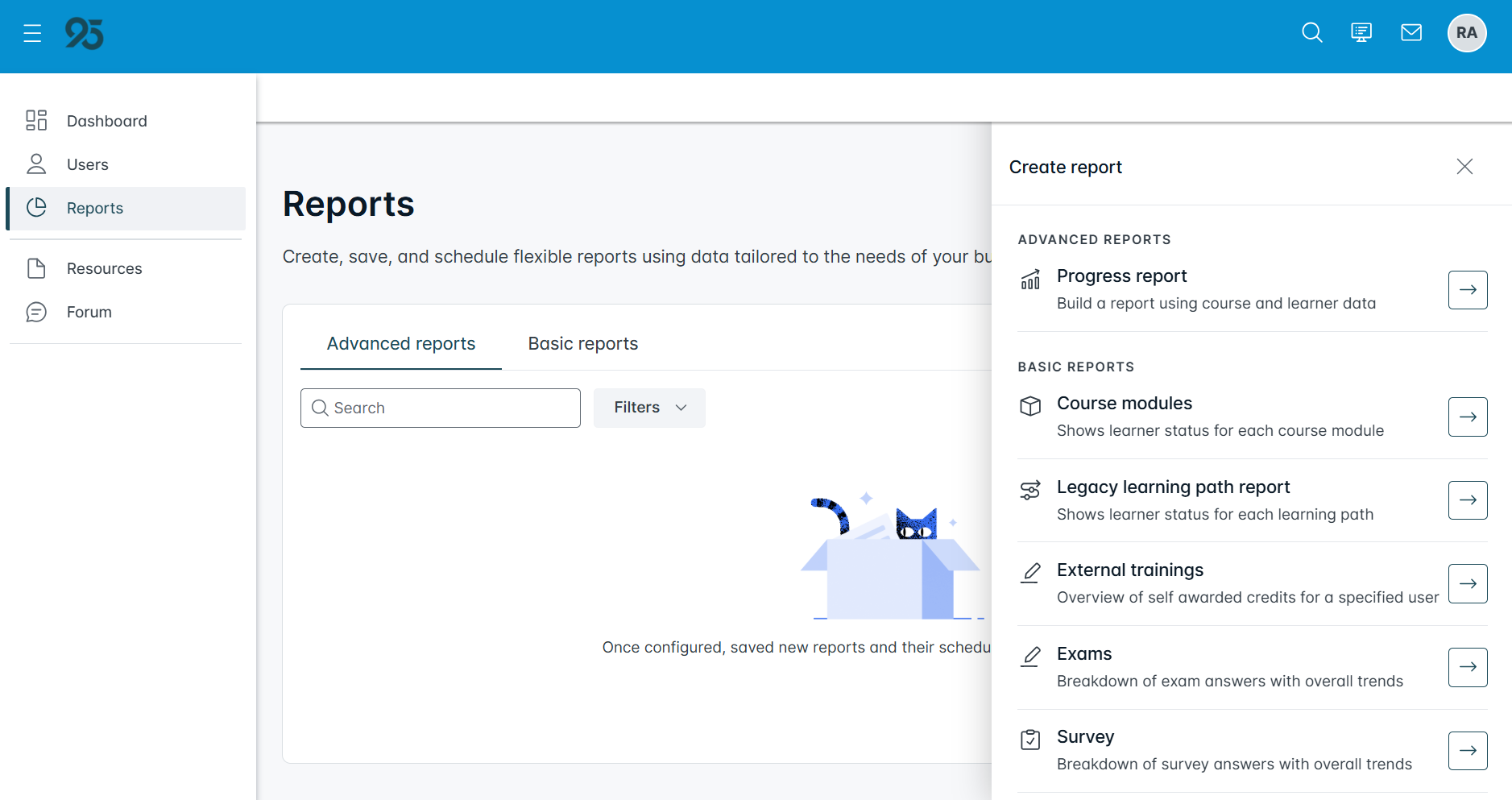
The most common report types are the progress reports and the legacy learning path reports.
- Progress reports are ideal for summarizing learners’ course progress.
- Legacy learning path reports are ideal for summarizing learners’ course progress if educators in your school or district are on a learning path.
Note that the legacy learning path report may be unavailable depending on your school or district’s course enrollments.
Progress Report
To create a progress report, click the arrow icon next to Progress report in the ADVANCED REPORTS section.
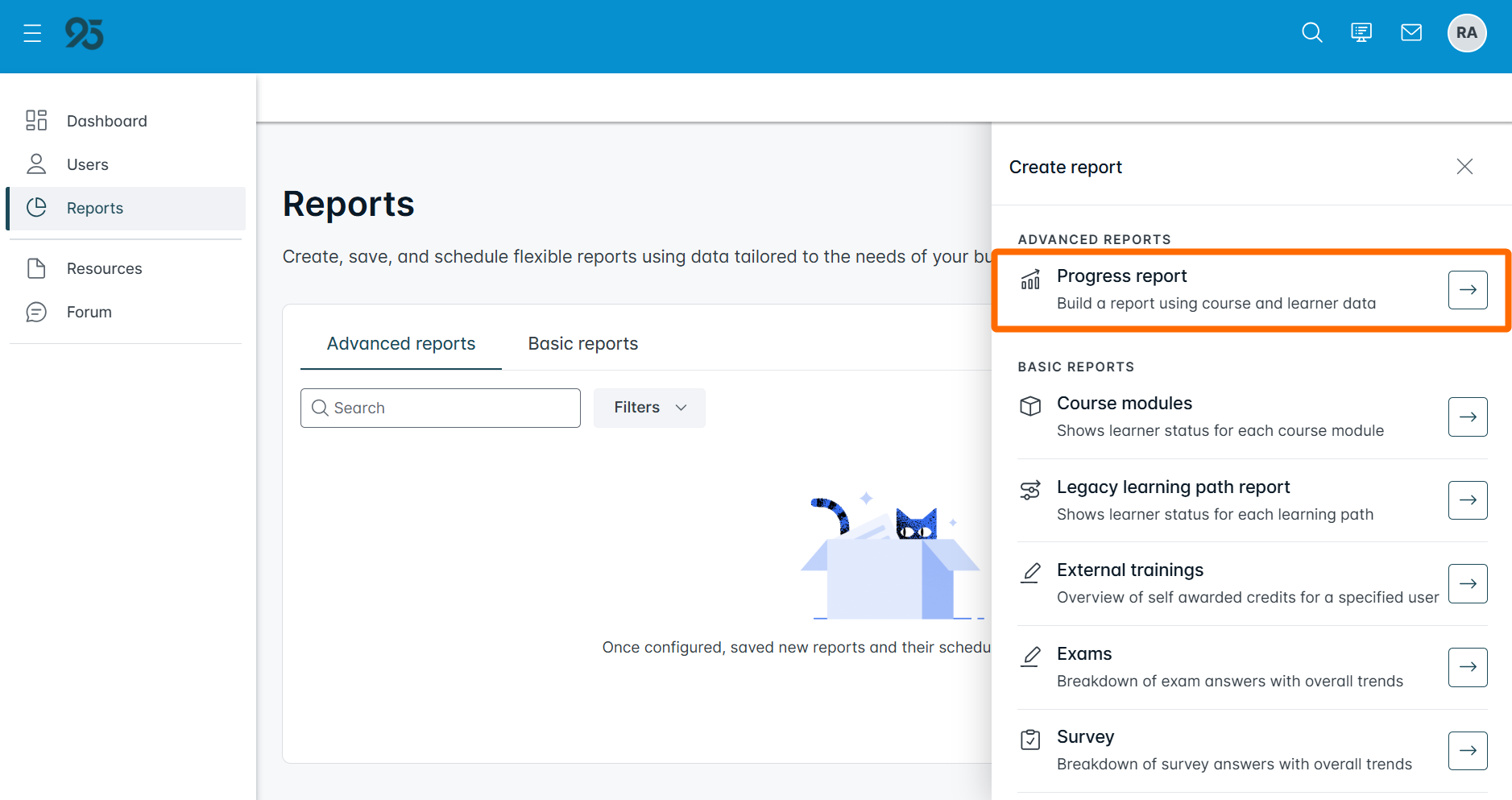
By default, the report considers all learning paths, groups, users (i.e., all user types and statuses), and course statuses. Filter data in the Filters tab as needed.
Next, select the Layout tab to ensure the right pieces are set for the report layout.
There are two sections in this tab: AVAILABLE DATA and YOUR REPORT.
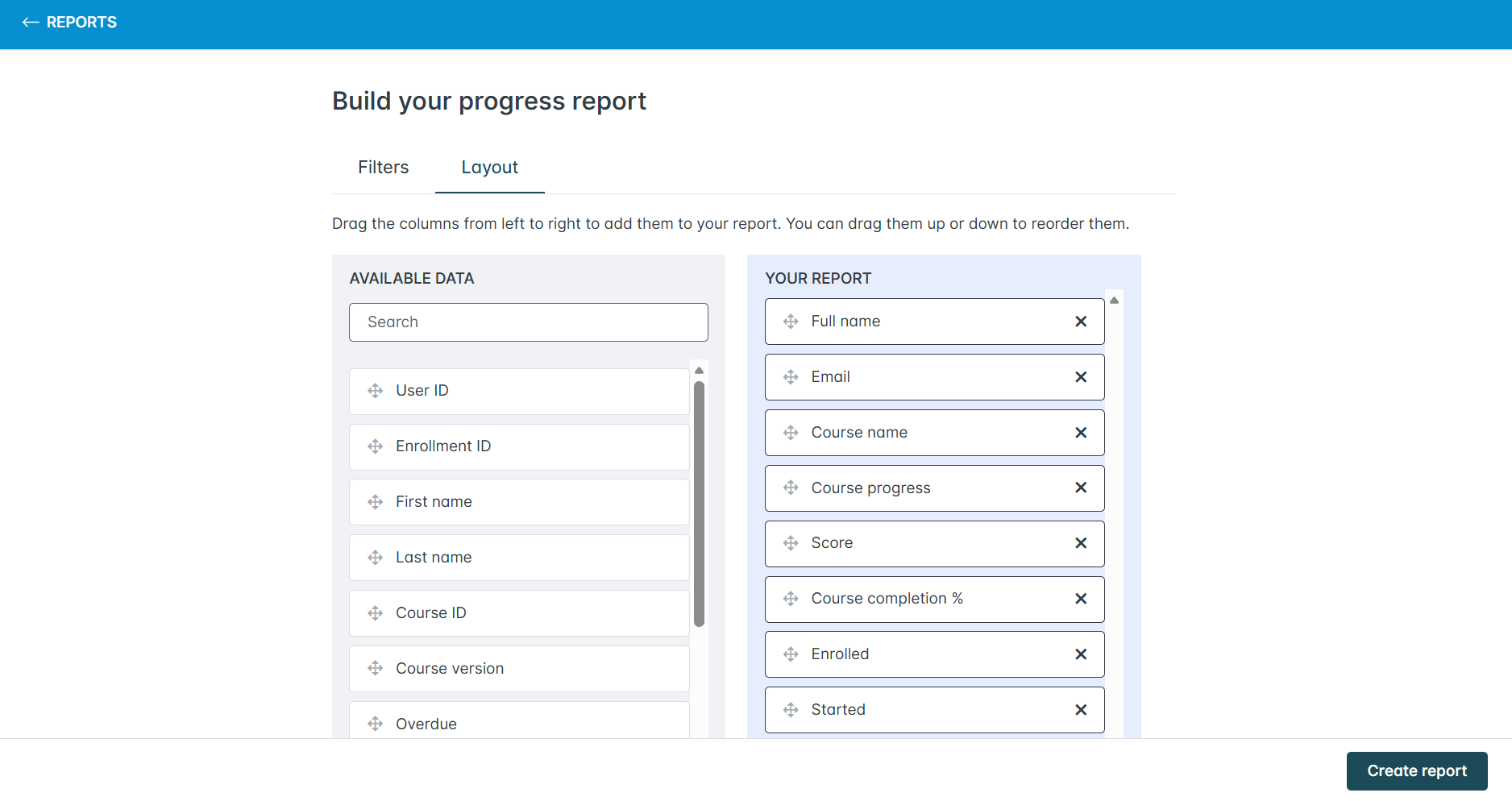
The YOUR REPORT section displays the default report columns (i.e., data points) available. Reorder the columns by dragging and dropping each data point. Remove columns by clicking on the X icon.
Note that the Score column is included in progress reports by default. Depending on the report's audience, it is advisable to consider removing this column.
The AVAILABLE DATA section displays the available custom data points. It is advisable to scroll down and drag and drop the Last accessed module column into the YOUR REPORT section to view the module name along with the course completion percentage. Since modules are numbered, this provides an idea of where the learner is in their course progression.
The remaining YOUR REPORT columns should be customized to your preferences.
Click Create report once complete.
The data, as it appears in the report, will be displayed.
- Click Export to export the information into a CSV file. Columns can be adjusted at your discretion once downloaded.
- Click Edit to go back and modify your report layout.
- Click Save report to save it to run again in the future. Once the report is saved, click the Schedule button to schedule it to run on a regular basis.
To reschedule or turn off scheduled reports, navigate to the Reports page, and click the ellipsis icon next to the progress report in the Advanced reports tab. Select Schedule from the drop-down.
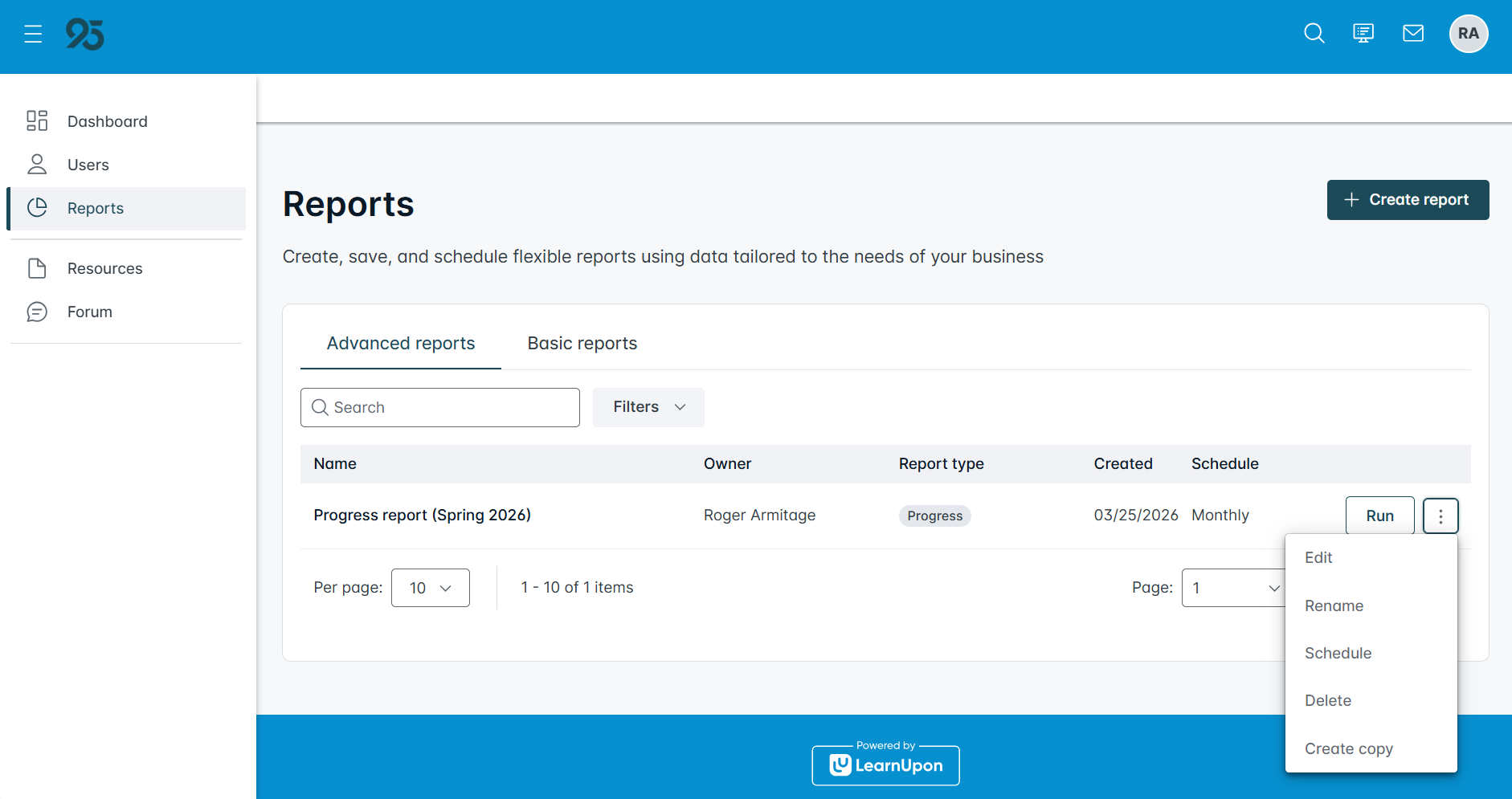
From here, modify the fields and adjust the report schedule details to reschedule it.
Click Turn off schedule at the bottom of the Reschedule report modal to turn off the scheduled report.
Legacy Learning Path Report
To create a legacy learning path report, click the arrow icon next to Legacy learning path report in the BASIC REPORTS section.
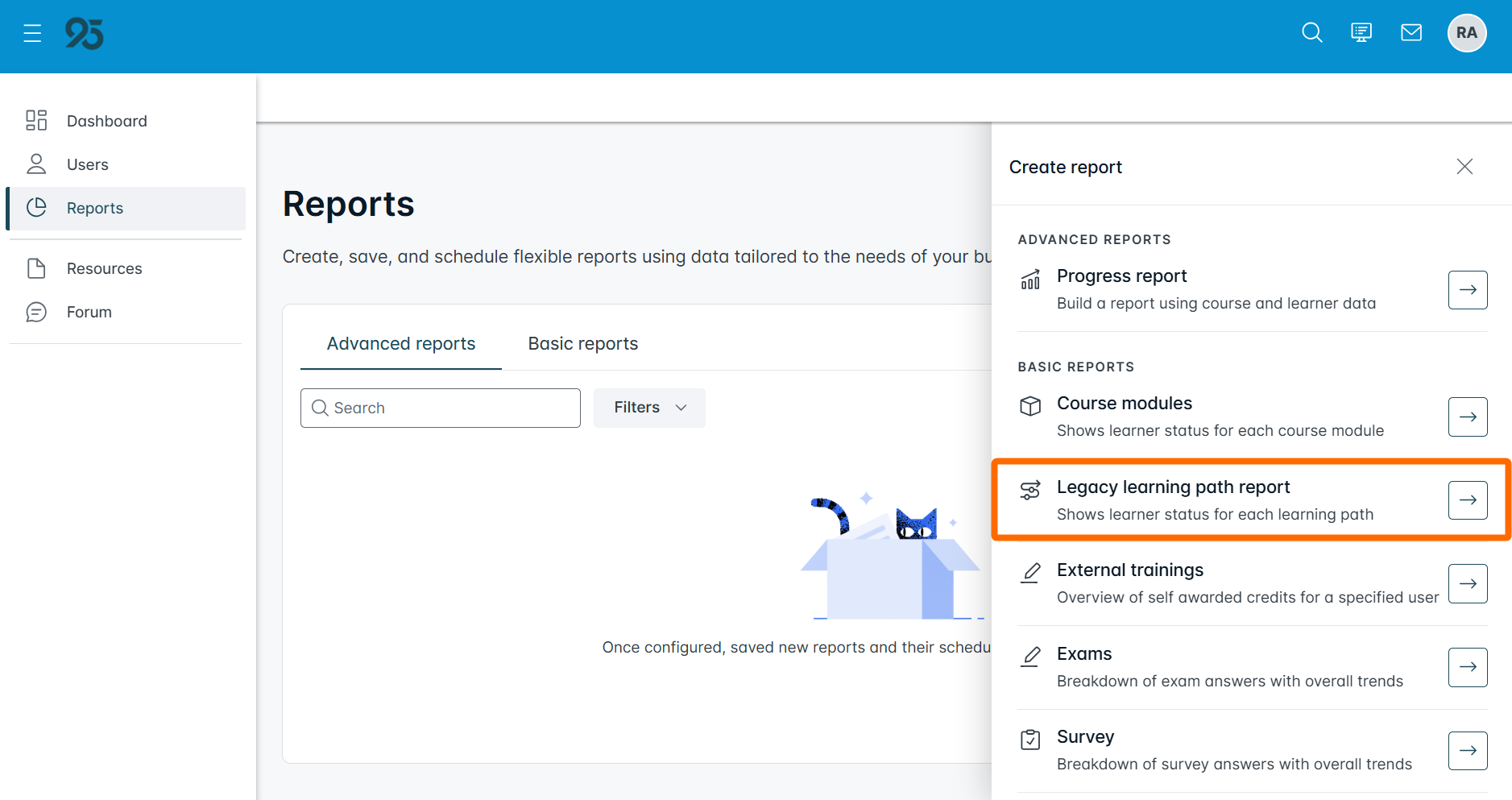
By default, the report considers all learning paths, groups, users, and course statuses. Select one or many learning paths or groups from the Learning Paths or Groups filters, respectively, to drill down. Individual users can be filtered as needed once the report is exported.
Optionally, expand the Custom user data filters section at the bottom of the page to run a report for an individual school.
For example, if you want to run a report for a school principal, enter the school's name in the School filter. Note that reports can also be filtered by school post-export.
There are two report export formats: CSV and PDF.
CSV reports are the most robust report type. The percentage of educators in each training path status, broken down by course, is displayed at the top of the report. A detailed breakdown of each educator’s training path progress is displayed at the bottom.
PDF reports summarize educators’ learning path progress at a high level, displaying the number of educators in each training path status and the percentage of educators in each training path course status. Educator names are not included.
Click Run report once complete.
Once the report is run, you have the option to schedule it. Click the Schedule button to schedule it to run on a regular basis.
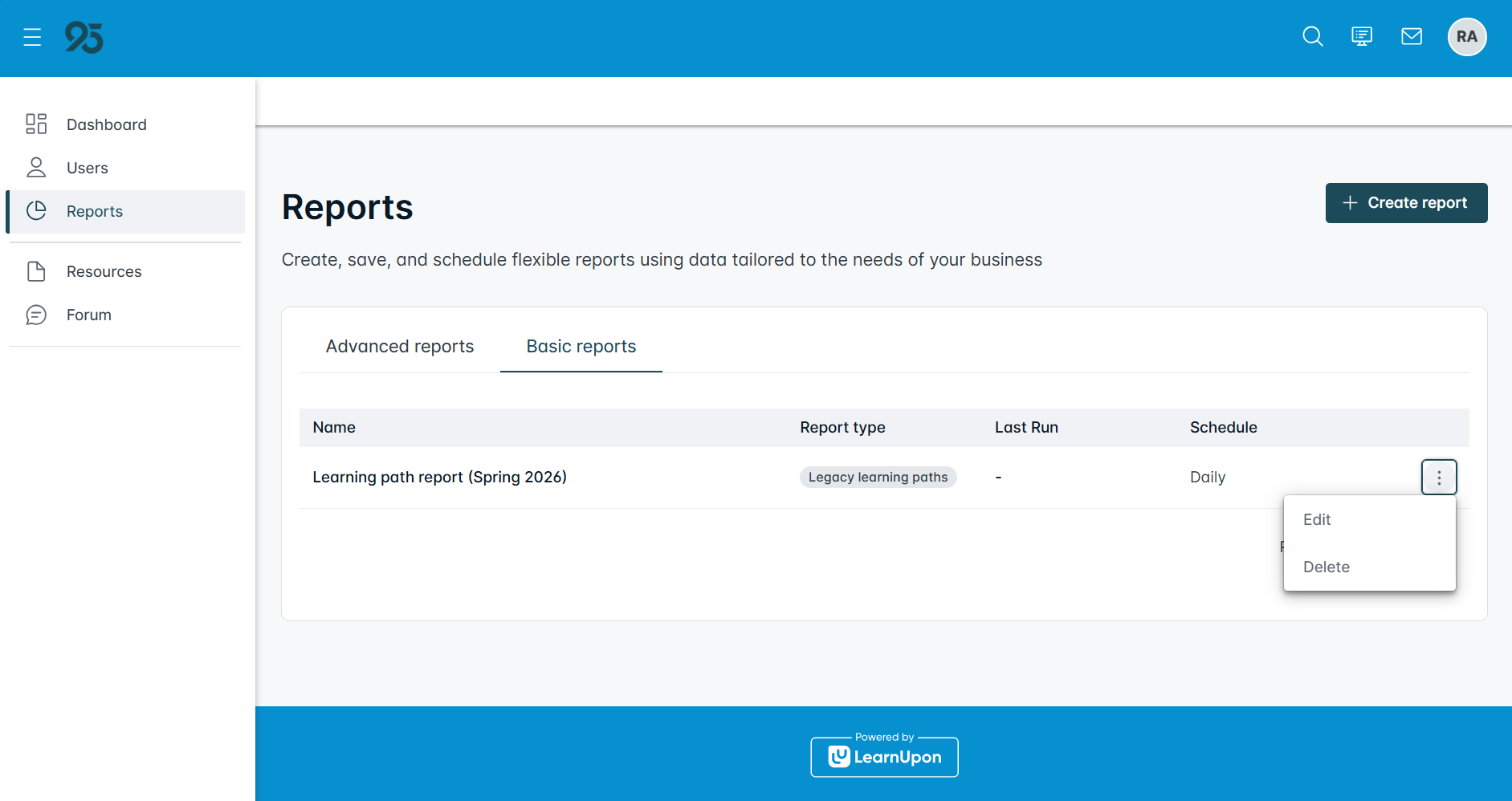
To reschedule or turn off scheduled reports, navigate to the Reports page and click the ellipsis icon next to the learning path report in the Basic reports tab. Select Edit or Delete from the drop-down.
95 Percent Group Support is here to help! Contact us via the knowledge base support form.
To learn more about submitting tickets, reference our article on One95 Support.
Was this article helpful?
That’s Great!
Thank you for your feedback
Sorry! We couldn't be helpful
Thank you for your feedback
Feedback sent
We appreciate your effort and will try to fix the article