All educators rostered through the district's rostering platform are listed in the Licensed Resources and Licensed Users subtabs of the Settings page's Licenses tab.
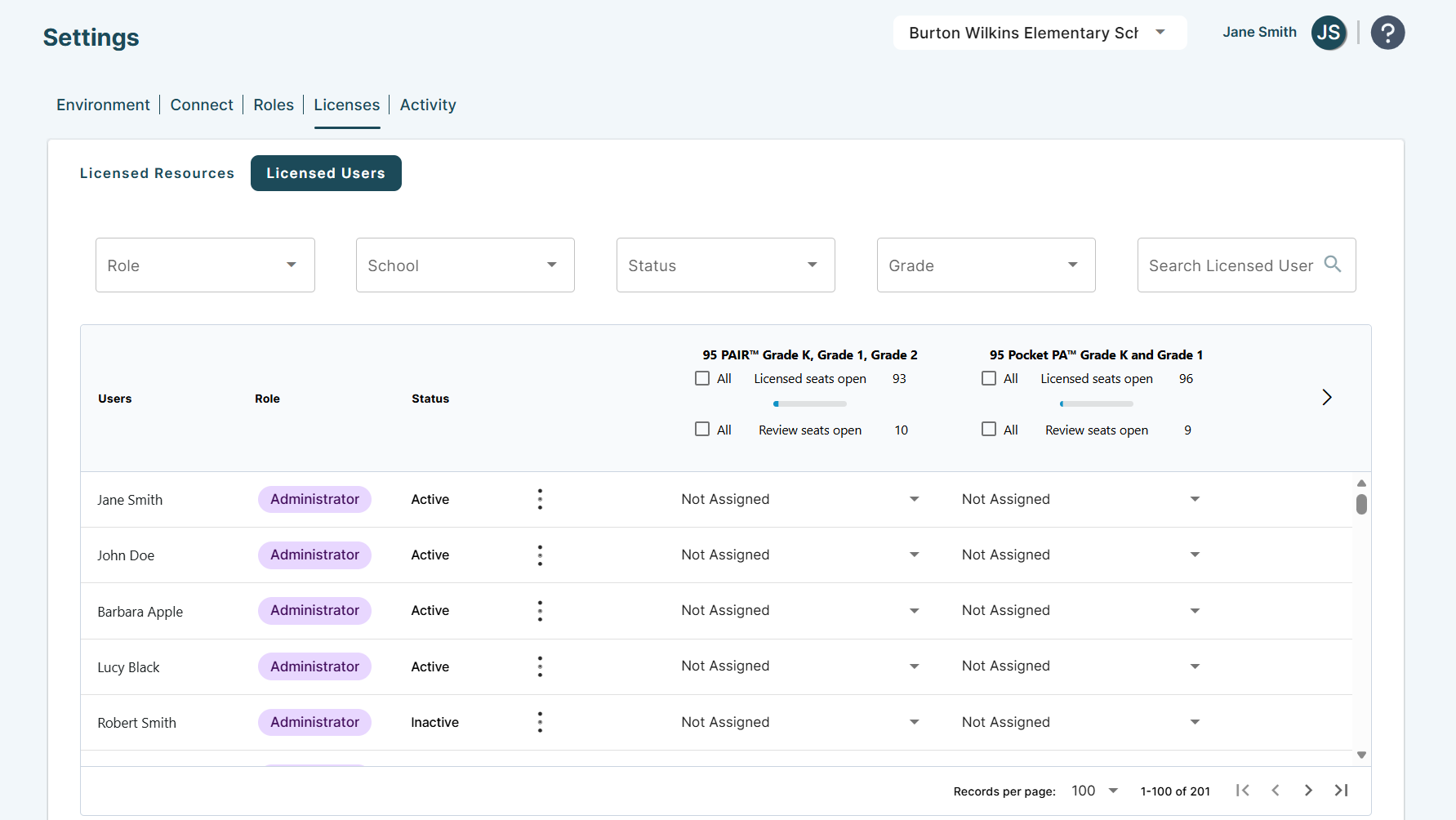
One95 Administrators have exclusive access to the Settings page, where platform settings are configured. Access the Licenses tab by selecting Settings from the navigation panel and clicking Licenses in the menu at the top of the page.
If a user is incorrectly marked as inactive or is not listed, contact your district’s rostering system administrator to ensure the user’s information is included in both the district roster and the sharing rules (if applicable) for the One95 platform.
Once complete, the user’s account will be reactivated or created the next time the rostering synchronization process occurs.
Note: Please allow some time for roster changes to be updated in One95. Roster changes may not be visually reflected in the platform until you have logged out and back in.
Data Syncs
The rostering synchronization process can occur either automatically overnight (if nightly rostering is enabled) or manually by One95 Administrators in the Settings page’s Connect tab.
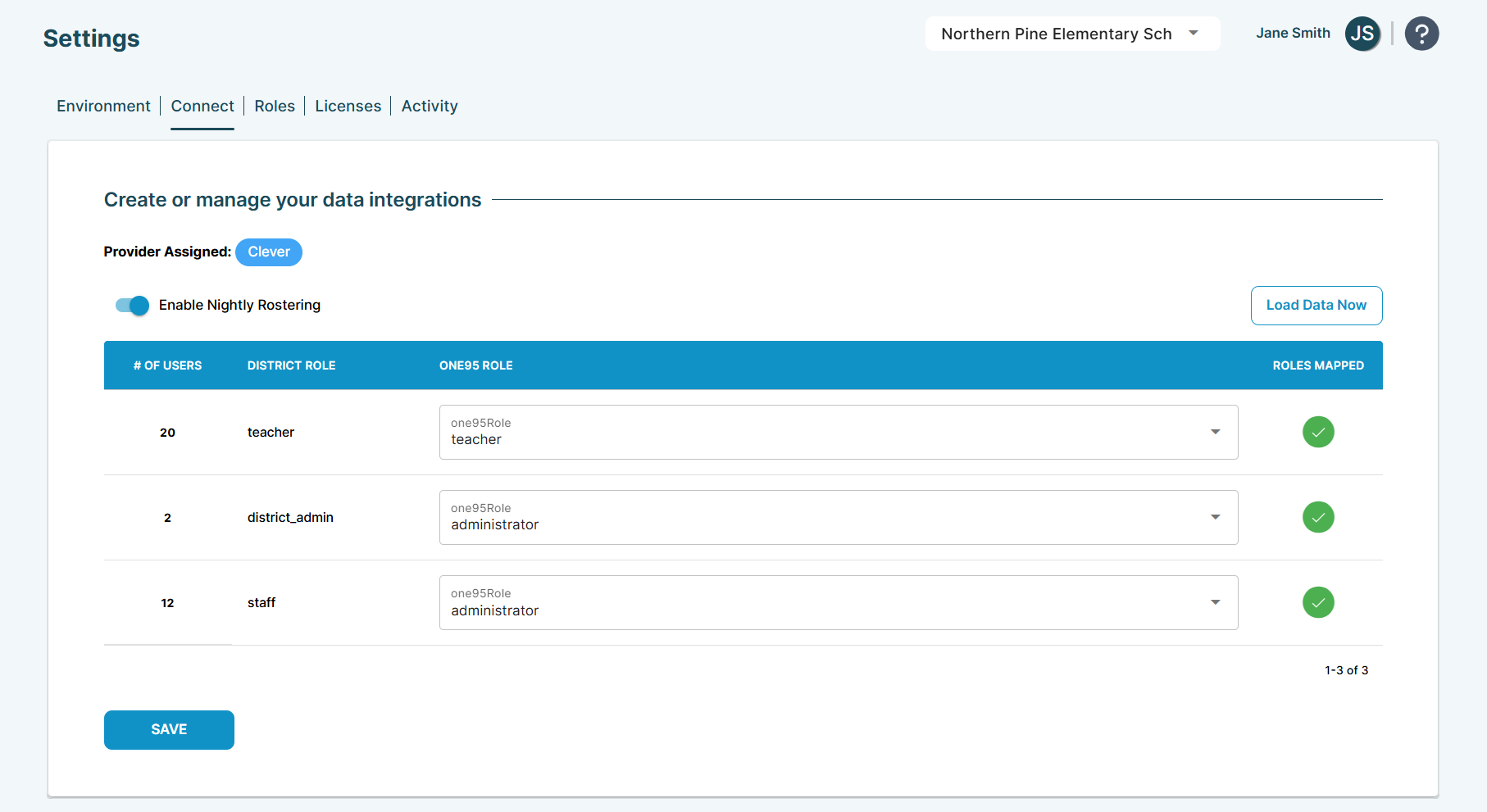
Access the Connect tab by selecting Settings from the navigation panel and clicking Connect in the menu at the top of the page.
Automatic Nightly Rostering
To enable the district's rostering to load nightly within the One95 platform, click the Enable Nightly Rostering toggle.
Nightly rostering is disabled by default.
If your district has not executed rostering yet:
1. Click the Enable Nightly Rostering toggle to enable nightly roster updates.
2. Click Load Data Now.
3. Click SAVE once complete.
If your district has previously executed rostering:
1. Click the Enable Nightly Rostering toggle to enable nightly roster updates.
2. Click SAVE once complete.
Manual Data Syncs
To manually synchronize data, click Load Data Now. Please allow several minutes for large districts.
Click SAVE once complete.
95 Percent Group Support is here to help! Contact us via the knowledge base support form.
To learn more about submitting tickets, reference our article on One95 Support.
Was this article helpful?
That’s Great!
Thank you for your feedback
Sorry! We couldn't be helpful
Thank you for your feedback
Feedback sent
We appreciate your effort and will try to fix the article