Essential Preparation for PASI and PSI Digital Assessments
Before administering the Phonemic Awareness Screener for Intervention™ (PASI) or Phonics Screener for Intervention™ (PSI) digital assessment with your students, complete these steps:
- Identify intervention students - Use your Universal Screener results to determine which students qualify for intervention support. (You should only give the PASI and/or PSI to those who you’ve identified.)
- Select assessment and starting skill - Choose the appropriate assessment and skill level based on the student's grade and time of year recommendations chart.
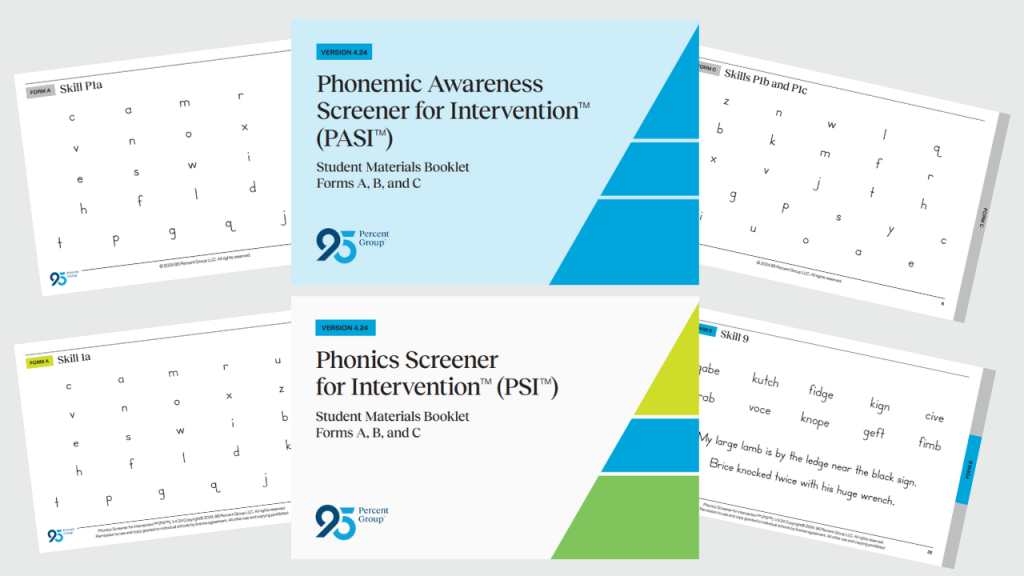
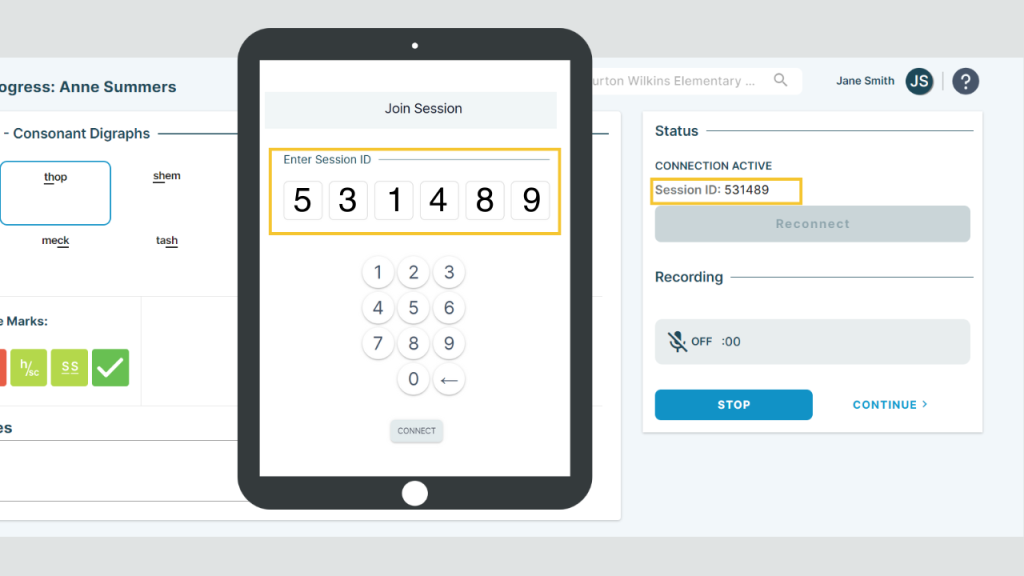
- Choose and gather your student materials - Decide between printing the student booklet or using the digital student flipbook. Prepare your materials. (See student material options below.)
- Prepare administrator materials - Ensure your teacher device has an internet connection and you're logged into One95™.
- Set up assessment space - Arrange a quiet area for 1:1 assessment administration with your student.
Your Student Materials Options
Option 1: Printing the Student Booklet From Your Resource Tile
 |
|
Option 2: Using the Digital Student Flipbook on a Student Device
 |
|
Now That You’re Prepped, Let’s Dive In!
Before you begin, watch the two Digital Assessment Administration Walkthrough videos below for step-by-step guidance on how to digitally administer assessments in 95 Literacy Intervention System™ (95 LIS™).
>> Video for digital assessment - Administer and Review Assessment
Finding Your Student and Starting the Assessment
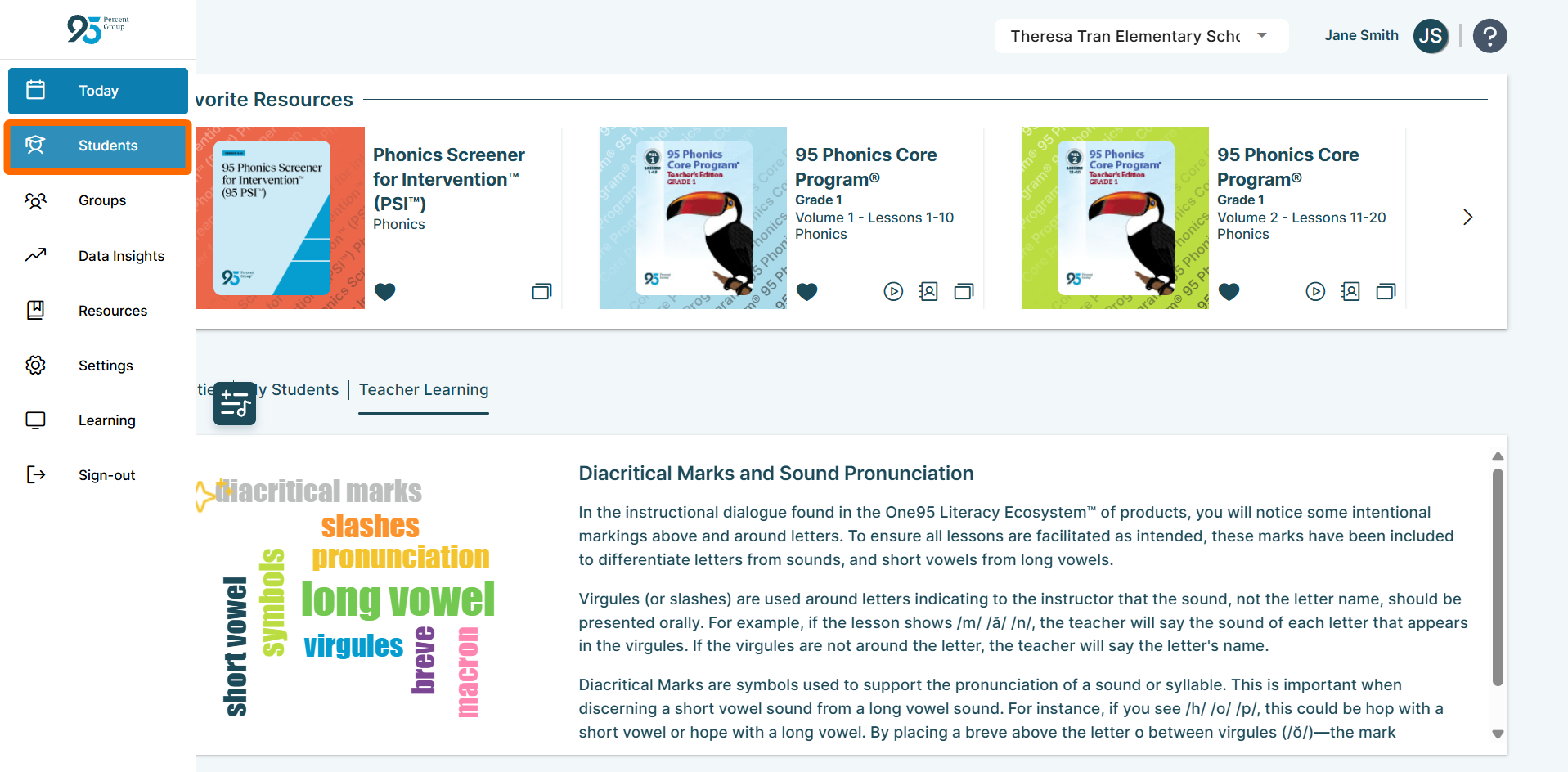
- Once logged into the One95 platform, click the Students page on the left-hand navigation panel.
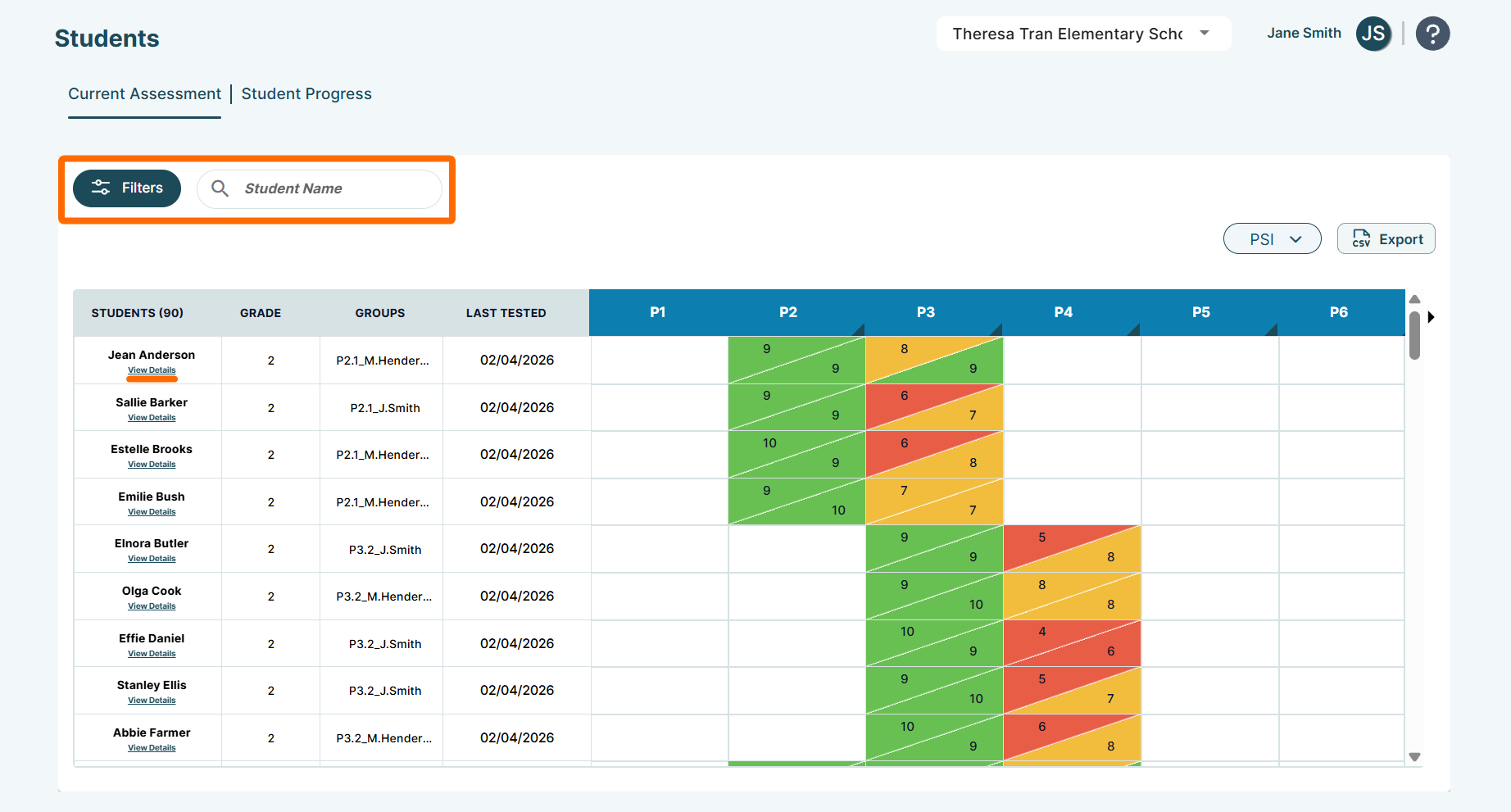
- On the Students page, use the filter options to find the students you’re associated with, or simply search for the student you're assessing by typing their name in the search bar. Once you find your student, click View Details under their name to access the digital assessments.
- Complete the Actions panel by selecting the assessment type, date, assessor, form, and starting skill, then click START ASSESSMENT. (>>Review Assessment Starting, Scoring, & Stopping Guidance as needed.)
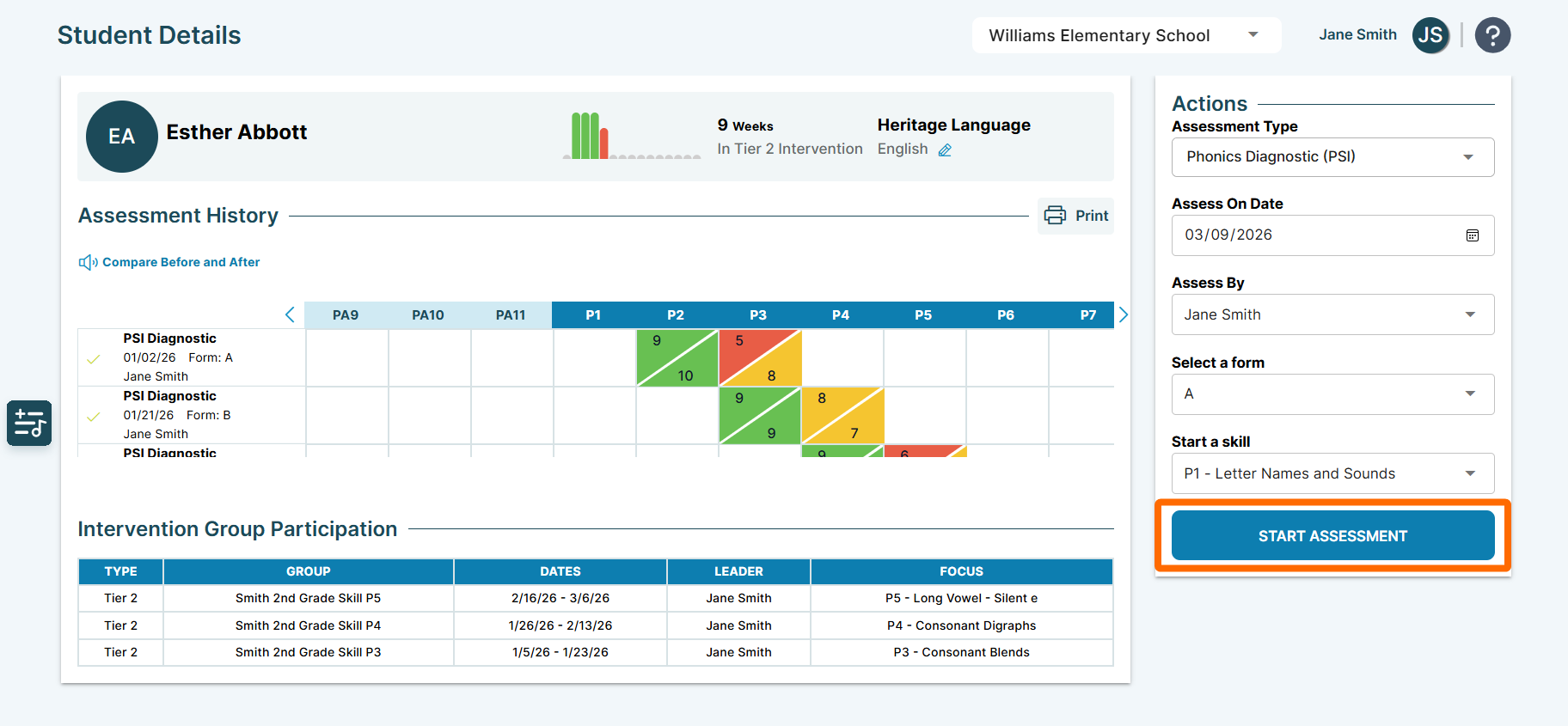
Note: The Actions panel recommends either a starting skill or the next skill (if already assessed) based on the student’s grade level, assessment history, and the time of year.

This means the default Assessment Type and Start at skill fields will be customized to each student's unique needs. Adjust these fields as needed.
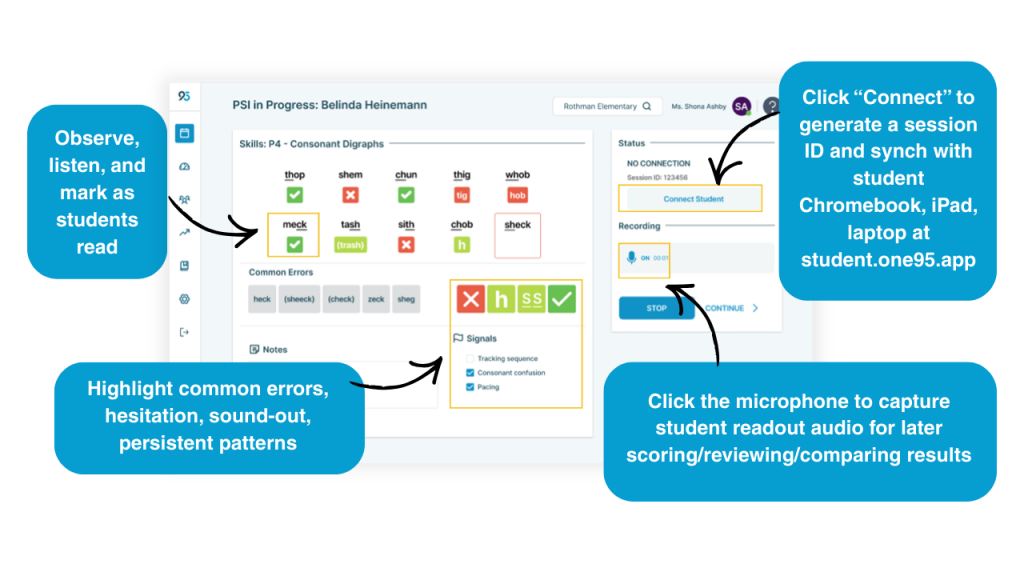
- If you wish to record your student reading, turn on the recording feature before they begin. (HIGHLY RECOMMENDED.)
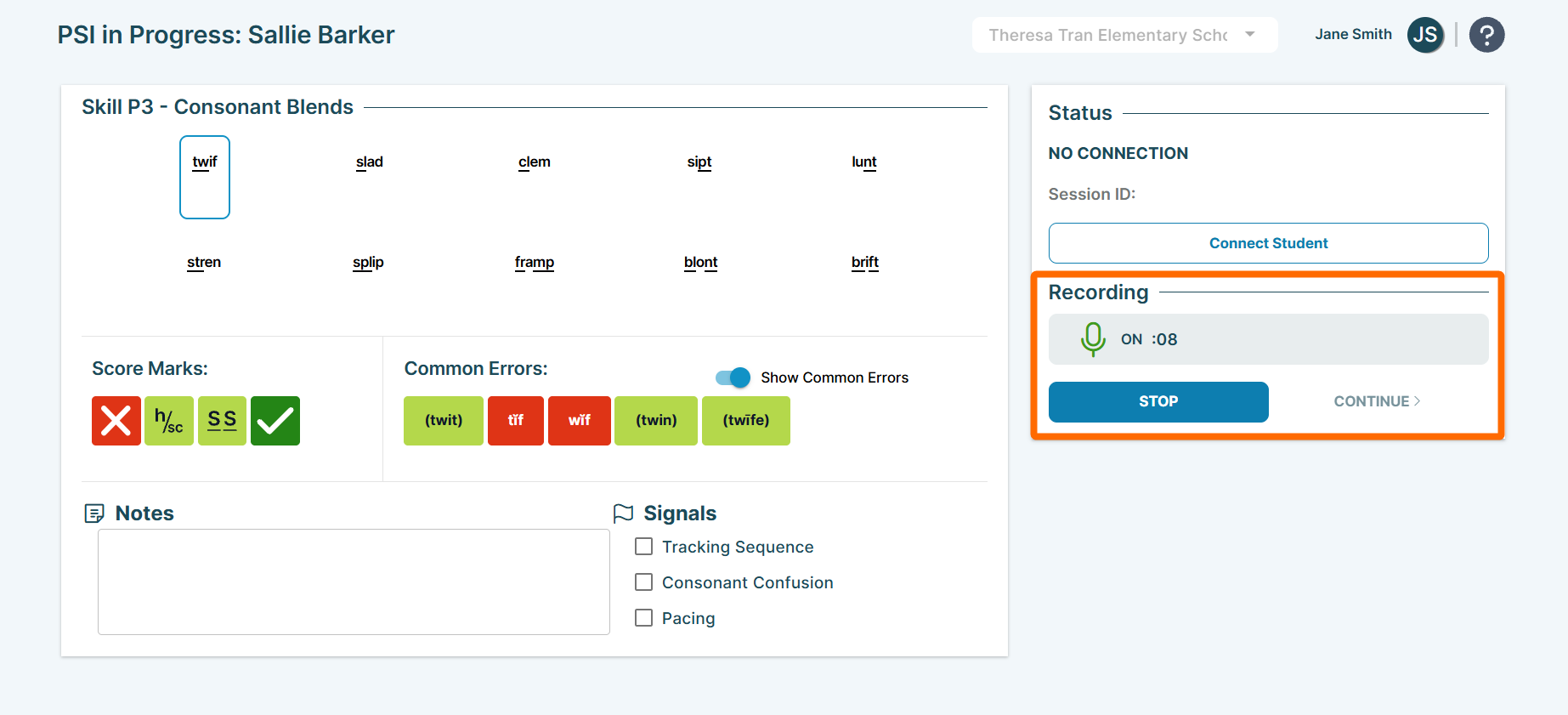
- Record the student's answers as they read using the scoring tools. (>>For more detailed guidance on scoring tools, check out the Assessment Administration article.)
Stopping the Assessment
- The goal is 80% or better for PASI and 90% or better for PSI—stop assessing when performance drops below proficiency.
(Note: If a student shows proficiency with pseudo words but not with sentences, continue the assessment until they fall below 90% in pseudo words. The system will alert you when this happens.)
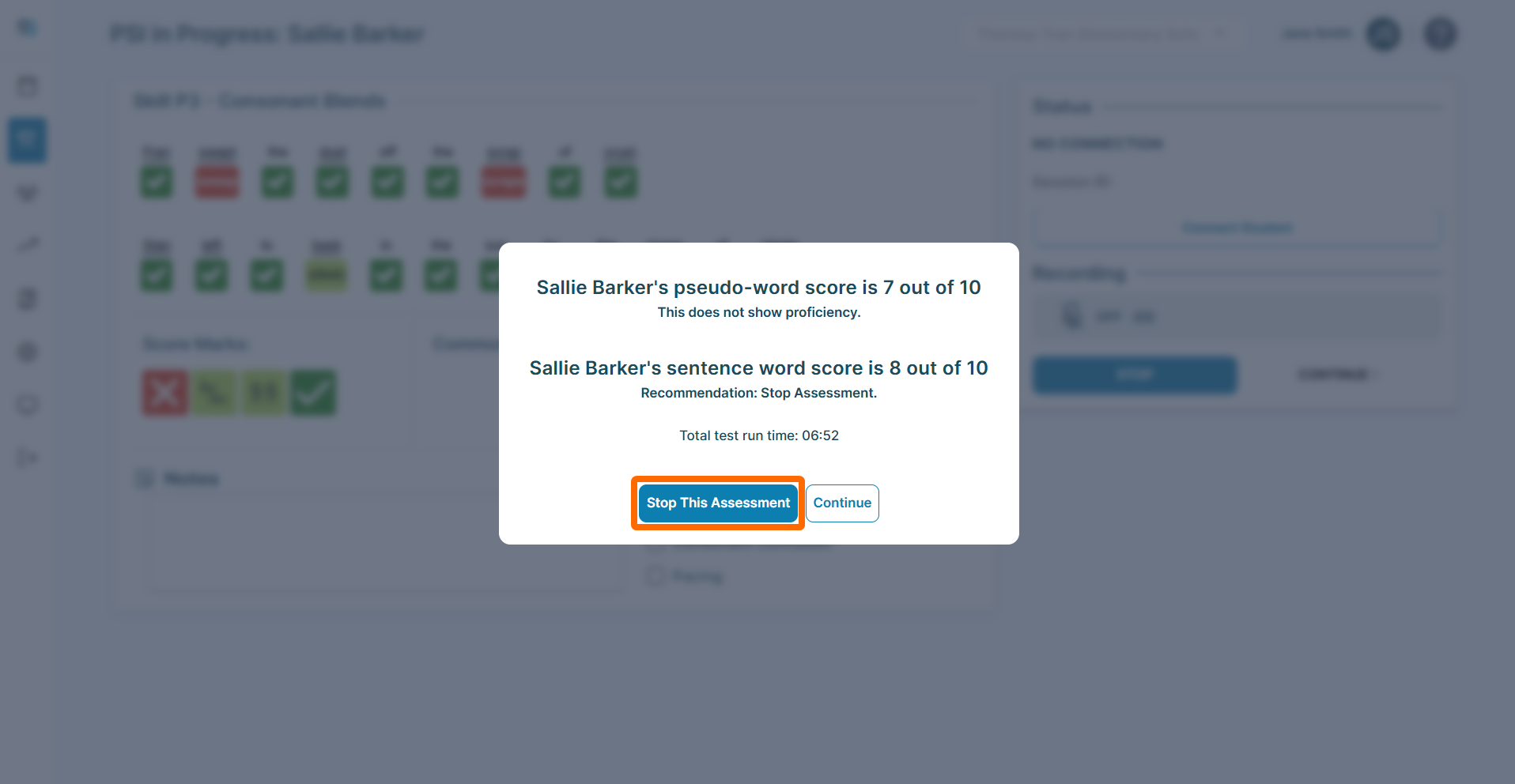
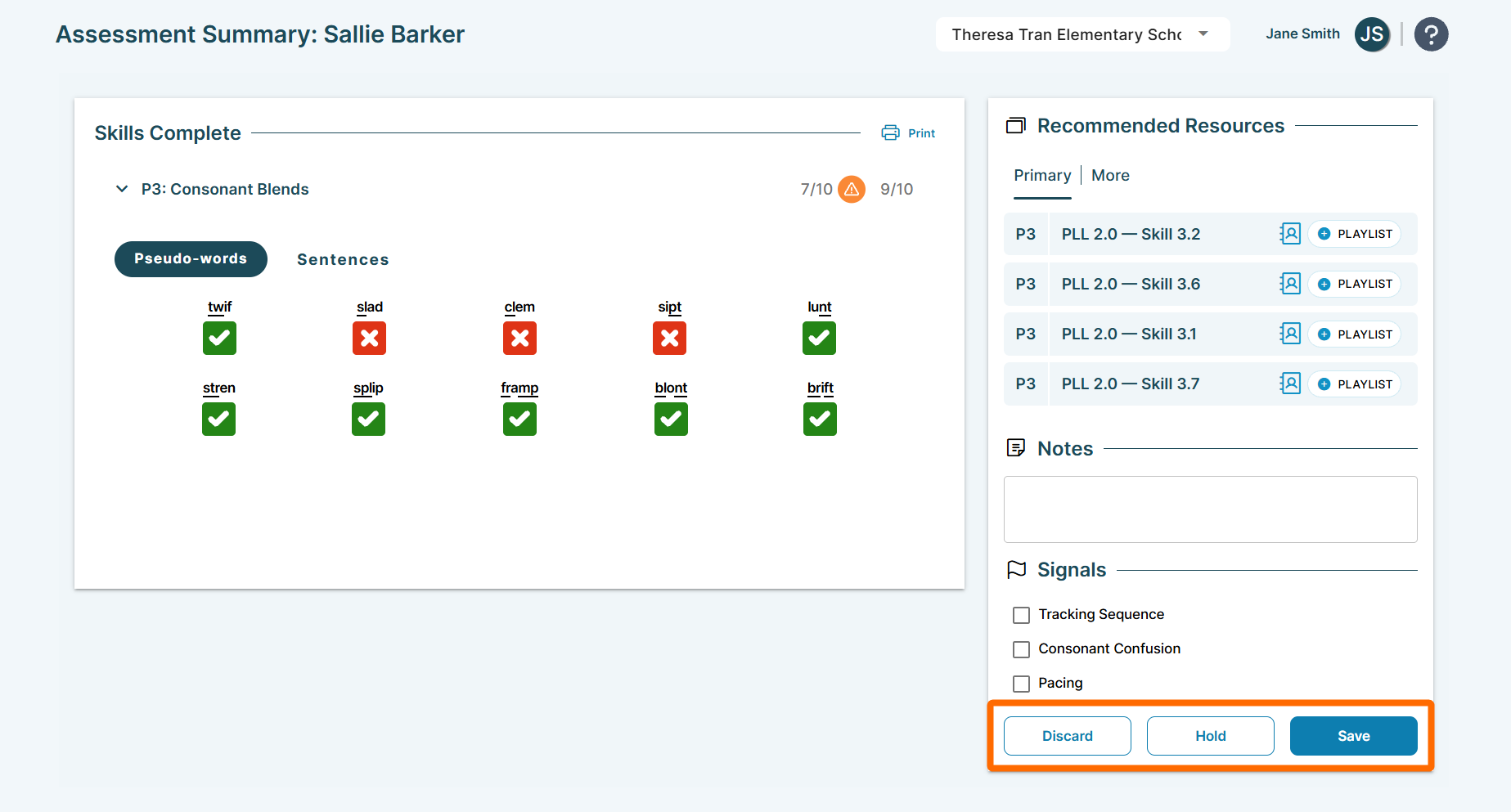
- When testing is complete, choose to either Hold or Save the assessment:
- Hold - allows future edits
- Save - finalizes results—no further edits possible
Repeat the Process!
Now that you've completed a digital assessment for one of your students, repeat the process for each student identified from your Universal Screener results, ensuring all students have a diagnostic assessment recorded in 95 LIS before you start analyzing the student data.
Want To Get Some Practice With Digital Assessments?
>>Complete a Practice Digital Assessment: Practice using the digital assessment tools before using them with your students.
95 Percent Group Support is here to help! Contact us via the knowledge base support form.
To learn more about submitting tickets, reference our article on One95 Support.
Was this article helpful?
That’s Great!
Thank you for your feedback
Sorry! We couldn't be helpful
Thank you for your feedback
Feedback sent
We appreciate your effort and will try to fix the article