Selecting Assessment Forms for PASI and PSI
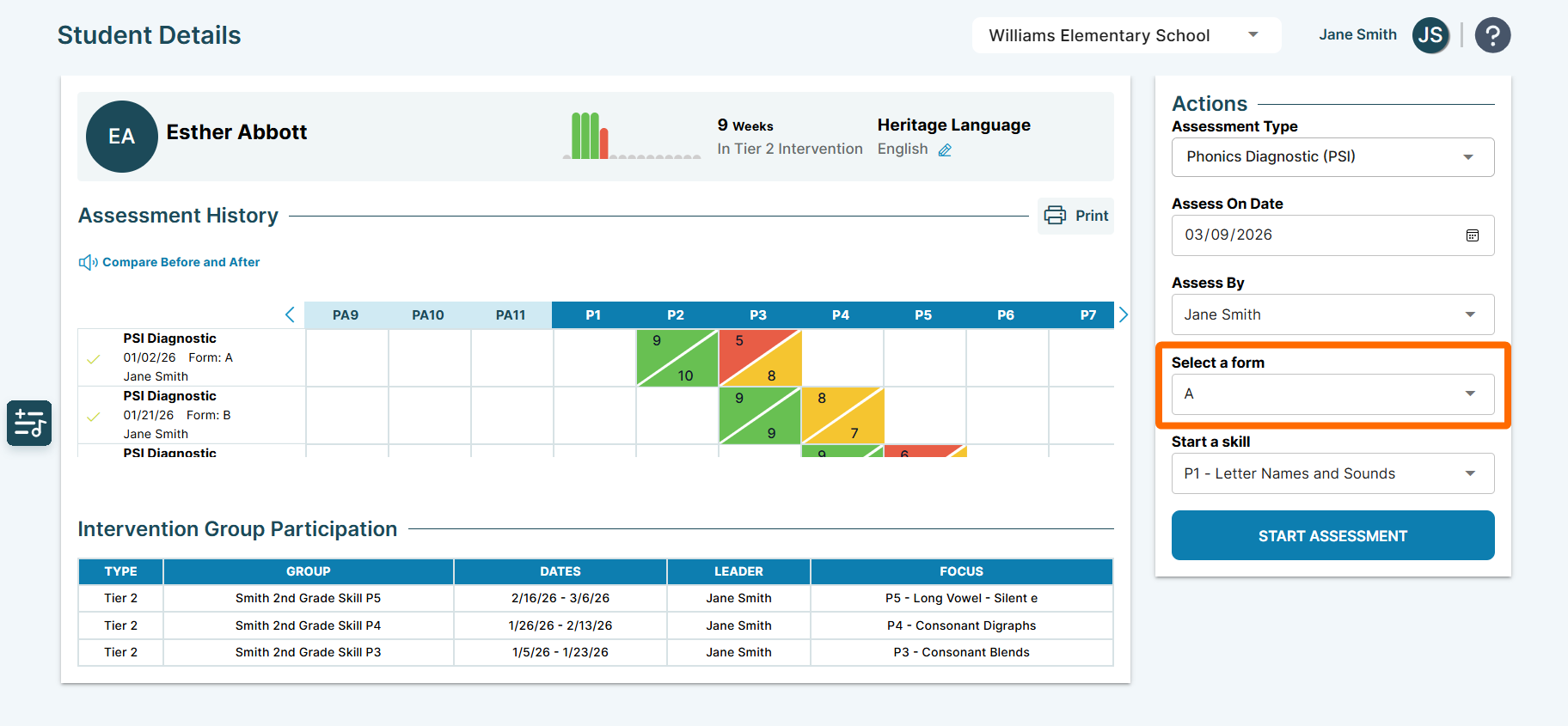
When preparing to administer the Phonemic Awareness Screener for Intervention™ (PASI) or the Phonics Screener for Intervention™ (PSI), you'll find that both assessments offer three form options: A, B, and C, for each skill. This variety ensures that students do not encounter the same assessment repeatedly when tested consecutively on the same skill.
It is recommended to start with form A for initial diagnostics, then alternate between forms B and C for progress monitoring after targeted instruction.
You can choose your preferred form when filling out the Actions panel on a student's Student Details page.
Where To Start Assessing Your Students
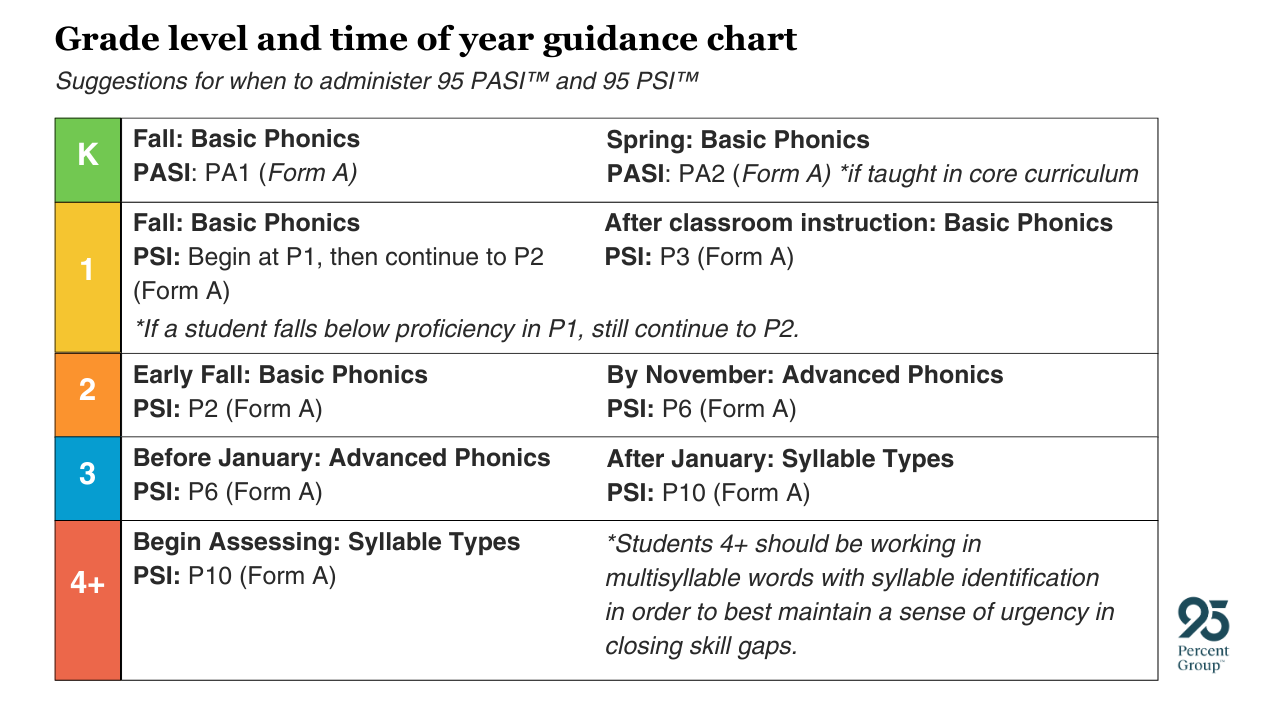
Refer to the chart below to find suggested starting points for administering the PASI and PSI with your students, helping you decide where to begin.
When To Stop Assessing Your Students
It's important to know when to end an assessment to avoid frustrating students if their performance falls below proficient. Here are some guidelines to help ensure a positive experience:
PASI:
- It is recommended to stop the assessment when a student scores below 80%, so you don't need to complete the entire assessment.
- With the PASI, the system will alert you to stop when a student's performance drops below this threshold.
PSI:
- It is recommended to stop the assessment when a student scores below 90%.
- With the PSI, the system will alert you to stop when a student's performance drops below this threshold.
- Pseudowords: If a student shows proficiency with pseudowords but not with sentences, continue the assessment until they fall below 90% in pseudowords. The system will alert you when this happens.
Recording Students as They Read
Recording students as they read allows educators to review the student's reading performance in detail, providing insights that might be missed during the live assessment. Additionally, these recordings can be revisited to track progress over time and ensure accurate scoring.
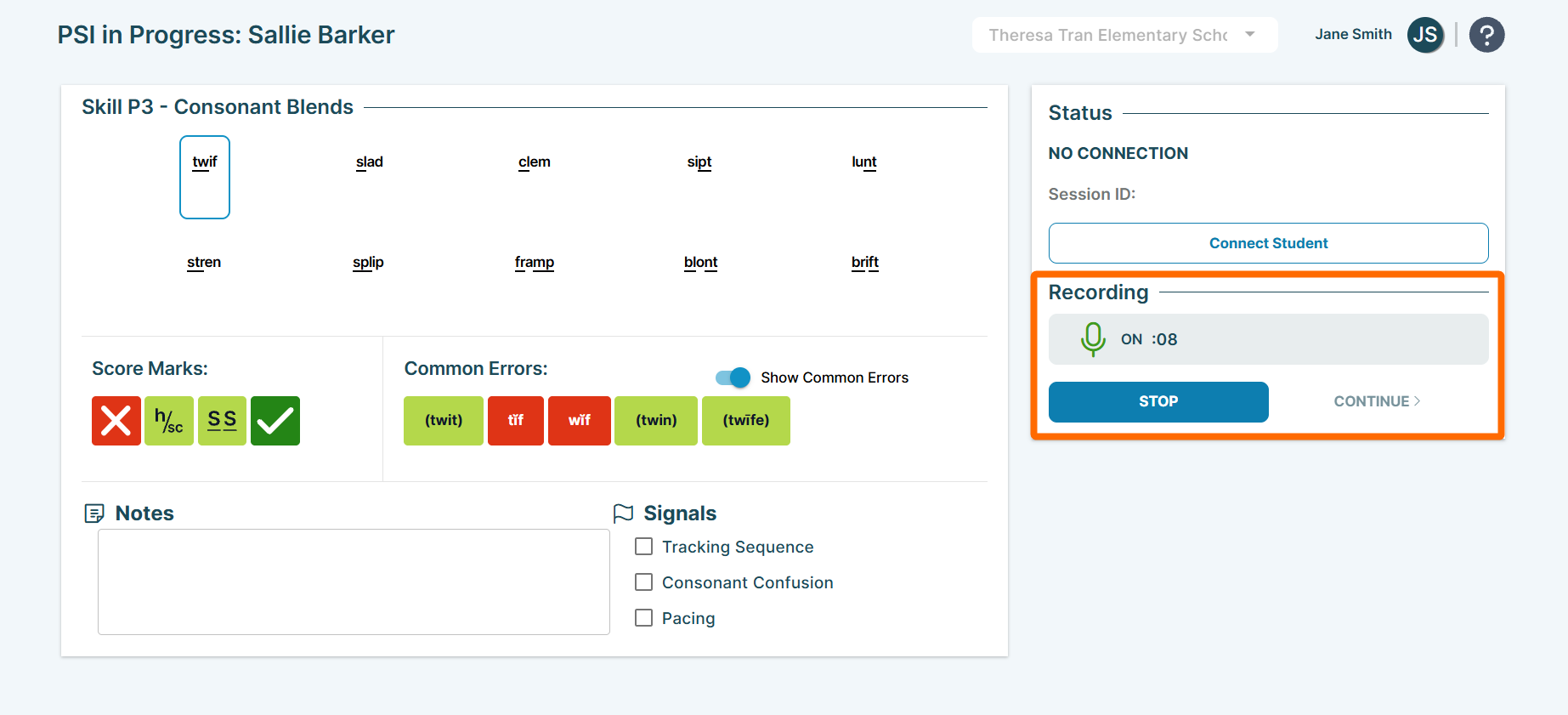
- Start Recording: Click the microphone icon in the Recording section to begin recording. Remember, recordings are captured from the assessor's device, not the student's.
- Starting/Pausing/Stopping: Ensure you click the microphone icon immediately after starting each assessment, as recordings cannot be captured or paused once you begin scoring.
- Recording Duration: The recording continues through the student's assessment unless paused and ends when the assessment is completed.
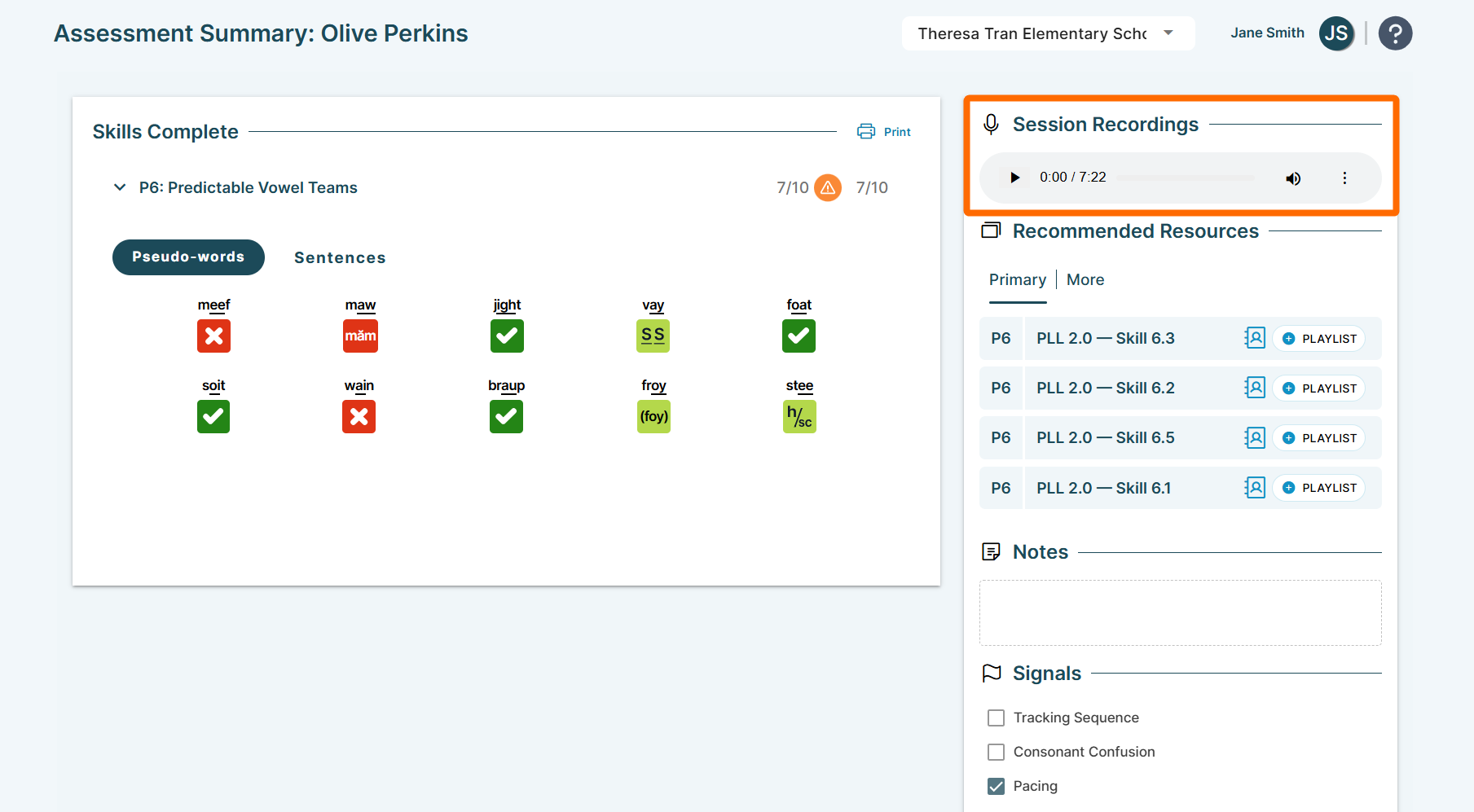
- Accessing Recordings: Saved recordings are accessible alongside the student's assessment data. In PSI assessments, you can compare before and after audio if multiple skill assessments are done over time on the Student Details page.
Scoring Your Students
When you're ready to start scoring, focus on listening and marking scores rather than giving verbal feedback. Assessors should score each prompt using a score mark, noting any common errors and the student's reading pace.
Although scores can be adjusted during the assessment by selecting new marks, it's best to record the session, listen attentively, and make changes afterward, without the student present.
Begin with basic red X and green check marks, then gradually incorporate other tools as you become more comfortable with the scoring process.
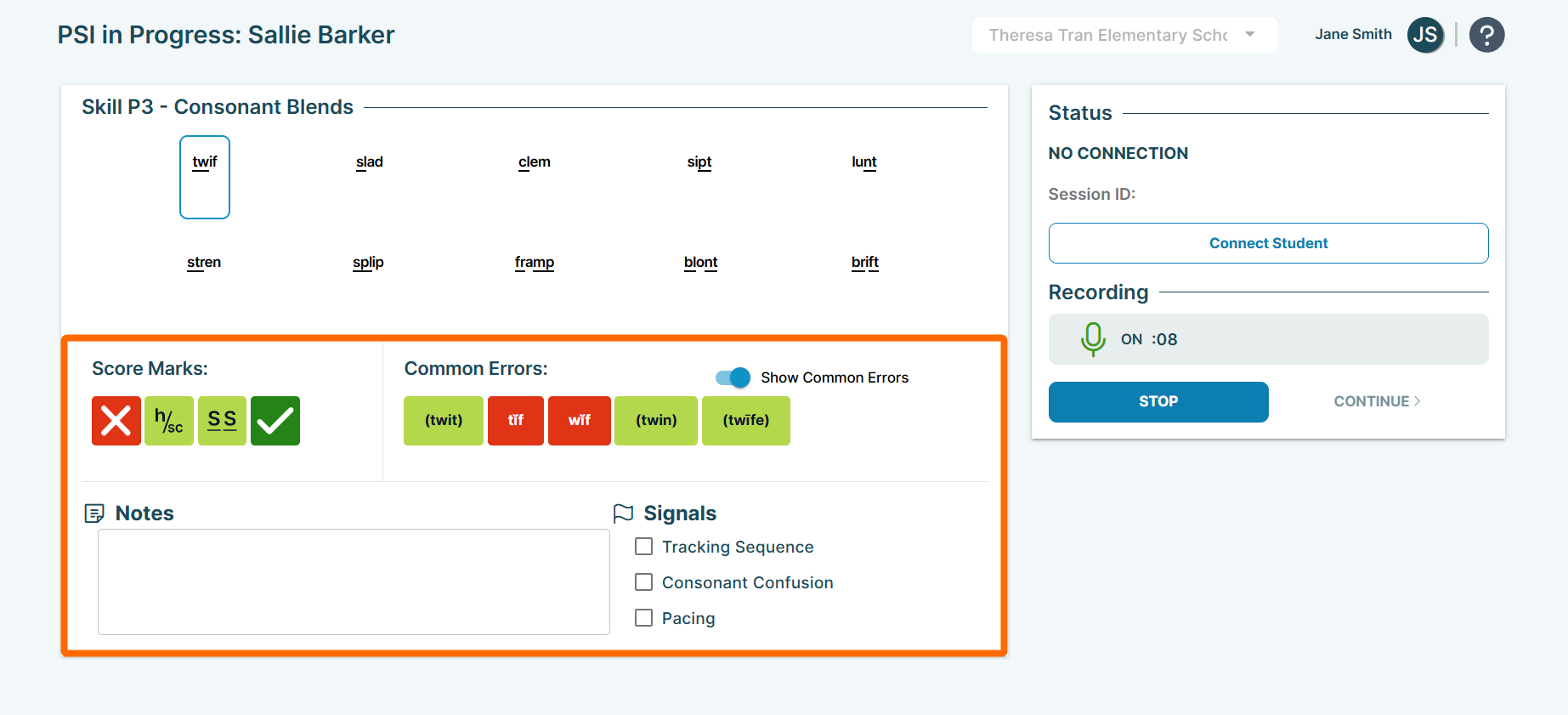
Digital Assessment Scoring Tools Overview
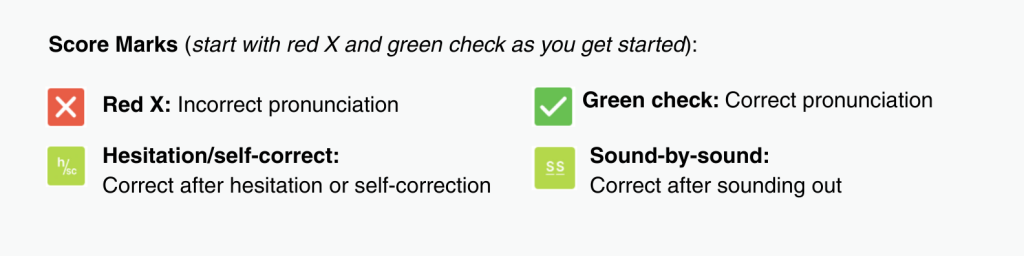
There are 4 primary score marks:
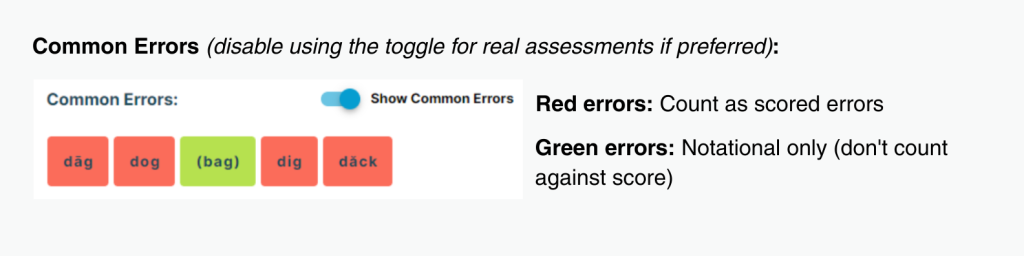
The Common Errors section provides additional error marks for frequent mistakes, offering insights into what the student does or does not understand.
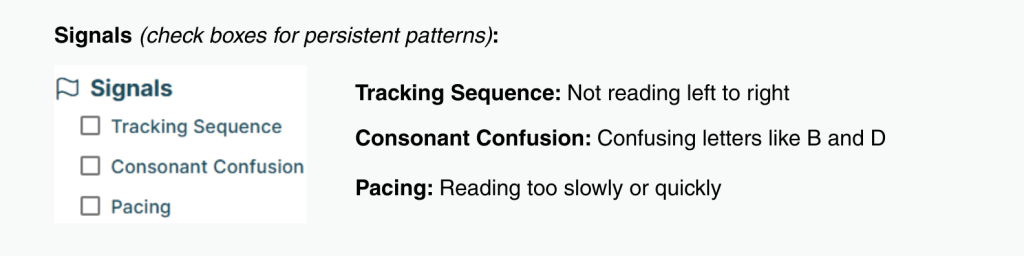
Signal checkboxes offer a quick way to record student reading patterns that persist across words in an assessment.
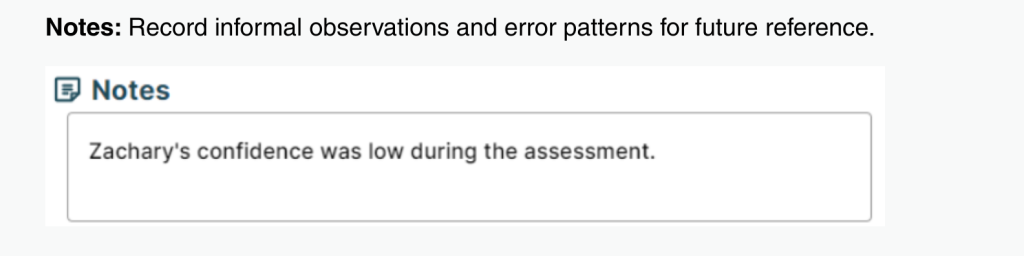
Like paper and pencil assessments, use Notes to record informal observations, standout error patterns, or trends for future reference. Notes are accessible to all users with visibility into the student within 95 Literacy Intervention System™ (95 LIS™) .
>>For more detailed guidance on effectively administering assessments using the 95 LIS, check out the Assessment Administration article.
Ready to Administer Digital Assessments?
>>Administer Assessments Digitally: Get step-by-step instructions for assessing your students digitally.
>>Complete a Practice Digital Assessment: Practice using the digital assessment tools before using them with your students.
95 Percent Group Support is here to help! Contact us via the knowledge base support form.
To learn more about submitting tickets, reference our article on One95 Support.
Was this article helpful?
That’s Great!
Thank you for your feedback
Sorry! We couldn't be helpful
Thank you for your feedback
Feedback sent
We appreciate your effort and will try to fix the article