Substitute teachers may need access to digital resources in the One95™ platform.
Rostering
All substitute teachers must be rostered into One95 from your district’s rostering platform to access 95 Percent Group resources.
Once the substitute has been rostered, One95 Administrators can manually synchronize data into One95 within the Settings page's Connect tab or wait for the automatic nightly rostering (if enabled).
One95 Administrators can confirm the user's record synchronization was successful by ensuring the substitute's name is visible from the Licensed Users subtab within the Settings page's Licenses tab.
To learn more about the Connect tab, reference our article on Settings | Connect Page.
To learn more about the Licenses tab, reference our article on Settings | Licenses Page.
Substitute Access
Once rostered and synchronized into the platform, licensed seats can be assigned to provide the substitute with product access. Seats cannot be assigned unless the substitute is rostered into One95.
Seats are managed by One95 Administrators within the Settings page's Licenses tab. Access the Licenses tab by selecting Settings from the navigation panel and clicking Licenses in the menu at the top of the page.
Navigate to the Licensed Users subtab and locate the teacher to whom you would like to unassign the resource license.
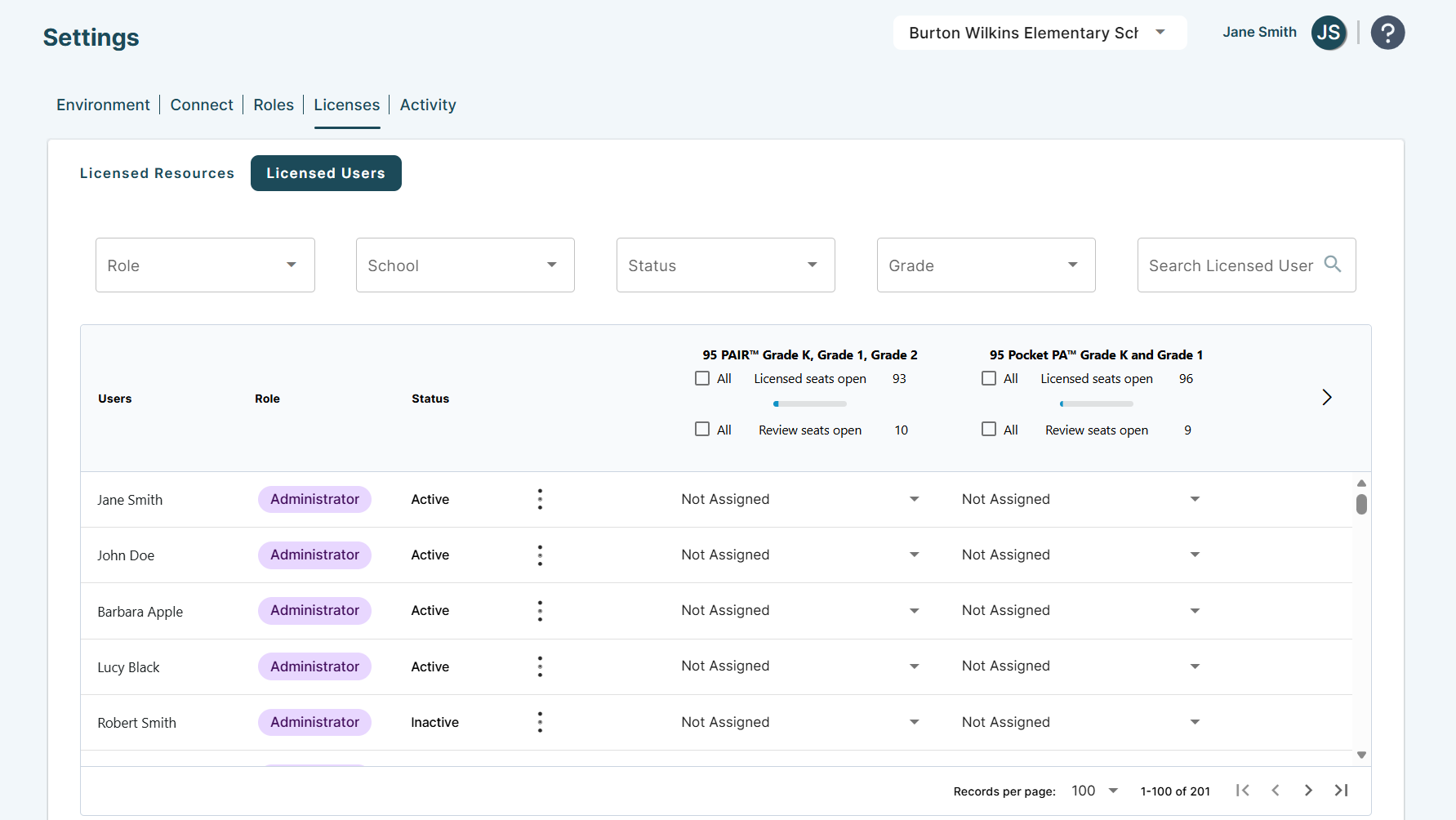
Reference the user’s product access level within the drop-downs next to their name. The drop-down selection corresponds to their access level for the product displayed in the carousel above.
Next, locate the resource to which you would like to unassign.
To locate a resource, click on the right and left arrow icons to advance the carousel forward or backward through your district’s list of purchased resources.
Once you have located the resource, remove the teacher's product assignment by clicking the corresponding drop-down and selecting Not Assigned. This opens a licensed seat.
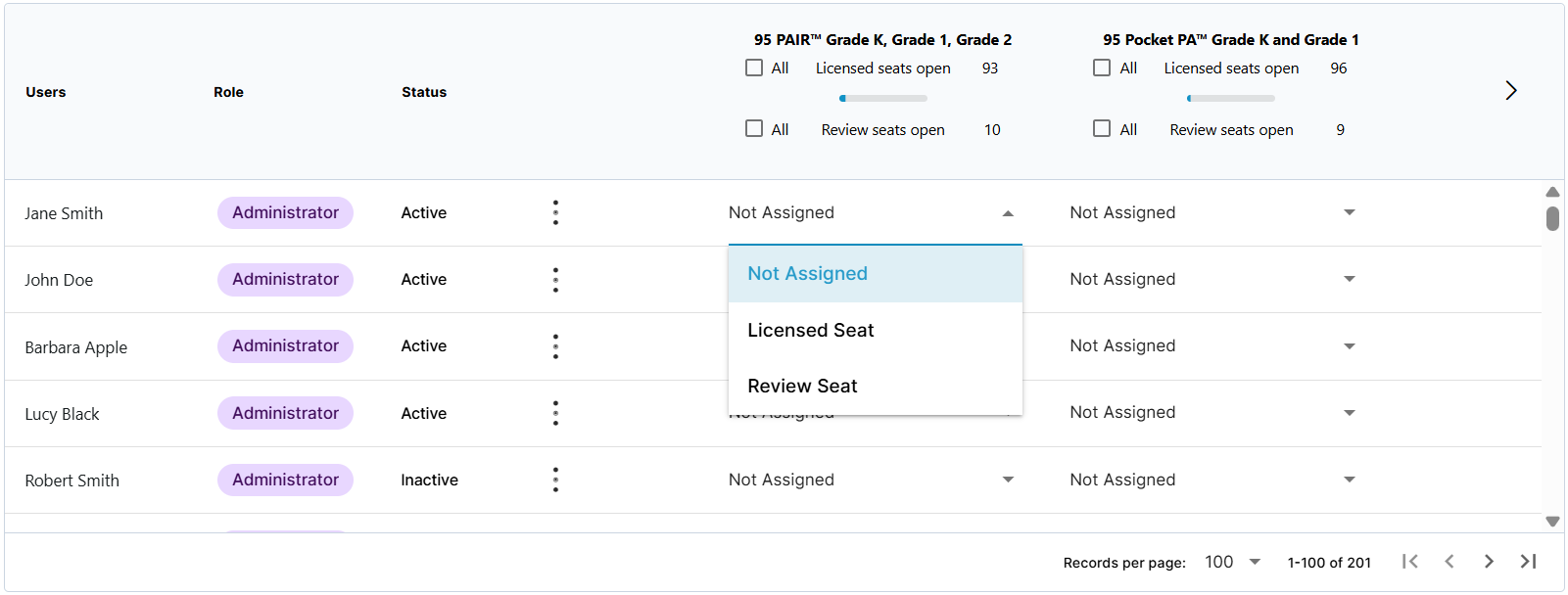
Now that you have an open seat for the substitute, locate them in the Licensed Users subtab.
Next, locate the resource to which you would like to assign.
Once you have located the resource, assign the product to the substitute by clicking the corresponding drop-down and selecting Licensed Seat. This transfers the teacher’s licensed seat to the substitute.
Click Update once complete.
The substitute teacher must log out and back in to access the newly assigned resources.
Reassign licensed seats to teachers by repeating this process at any time.
To learn more about license assignments from the Licensed Resources subtab, reference our article on One95 License Assignments.
95 Percent Group Support is here to help! Contact us via the knowledge base support form.
To learn more about submitting tickets, reference our article on One95 Support.
Was this article helpful?
That’s Great!
Thank you for your feedback
Sorry! We couldn't be helpful
Thank you for your feedback
Feedback sent
We appreciate your effort and will try to fix the article