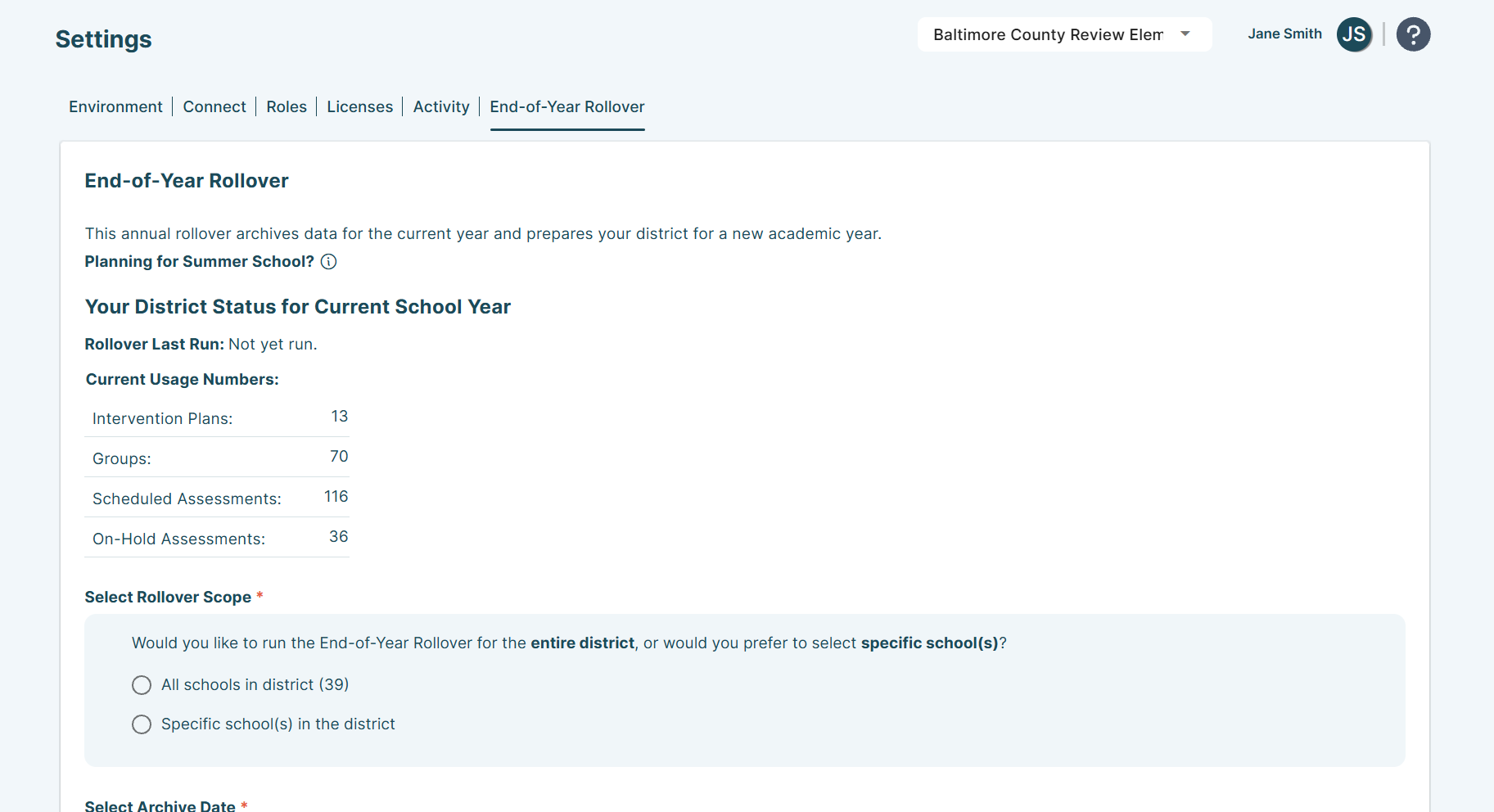
As the school year concludes, it is important to prepare your intervention groups within the 95 Literacy Intervention System™ (LIS) based on your summer plans.
There are two common scenarios: pausing the LIS until the next school year or using the LIS for summer school. The recommended steps for each scenario are outlined below.
Note:
- All saved student data will carry over and be available next school year.
- If groups stay open, students will show as receiving intervention over the summer.
- Students must be removed from current year groups before they can be added to new groups next year.
Scenario 1: Pausing LIS Until Next School Year
This scenario is ideal if you plan to pause intervention and start fresh in the new school year.
Goal
Close current groups and intervention plans to keep records clean and set up a smooth fall restart.
Suggested Steps
- Delete all active groups and intervention plans (which removes all students), or keep them and remove students one by one from each group.
- Align on your fall relaunch and teacher training plan.
- Prepare to create new intervention plans and groups for the next school year.
Scenario 2: Using LIS for Summer School
This scenario is ideal if you have a set group of students continuing intervention over the summer.
Goal
Create new groups and intervention plans with only summer school students — remove all others to keep your data accurate.
Suggested Steps
- Delete all active groups and intervention plans (which removes all students), or keep them and remove students one by one from each group.
- Create new groups and intervention plans for summer students.
- Confirm staff have access to LIS and their groups for instruction and progress monitoring.
- Close all summer groups and intervention plans before the new school year begins.
How to Remove Groups, Intervention Plans, and Students
Delete Intervention Plans, Groups, and Students
If you created intervention plans in the Groups page’s Intervention Plans tab, deleting them will remove both the groups and students.
1. Go to the Groups page.
2. Click the Intervention Plans tab.
3. Select an intervention plan.
4. Click Delete This Plan.
5. Click Yes, Please Delete Plan to confirm.
6. Repeat these steps for all plans you want to close.

Delete Groups, Including Students
If you created groups in the Groups page’s Active Groups tab, deleting them will also remove the students from them.
1. Go to the Groups page.
2. Click the ellipsis icon on the group tile.
3. Click the trash icon.
4. Click Delete This Group to confirm.
5. Repeat these steps for all groups you want to close.

Delete Students, Keep Intervention Plans and/or Groups
If you want to keep your intervention plans and/or groups for next year, remove students one by one from each group.
1. Go to the Groups page.
2. Click on the group tile.
3. Select the info card of the desired student.
4. Click the red minus icon to remove the student from the group.
5. Click Yes, Please Continue to confirm.
6. Repeat these steps for all the students in each group as needed.

95 Percent Group Support is here to help! Contact us via the knowledge base support form.
To learn more about submitting tickets, reference our article on One95 Support.
Was this article helpful?
That’s Great!
Thank you for your feedback
Sorry! We couldn't be helpful
Thank you for your feedback
Feedback sent
We appreciate your effort and will try to fix the article