Table of Contents
Student data can be exported from three pages: the Data Insights page, the Student Details page, and the Students page.
By default, the ability to export student reports is disabled. One95 Administrators must enable this setting before student data can be exported.
Export Settings
One95 Administrators manage the ability to export student reports in the Settings page's Environment tab.
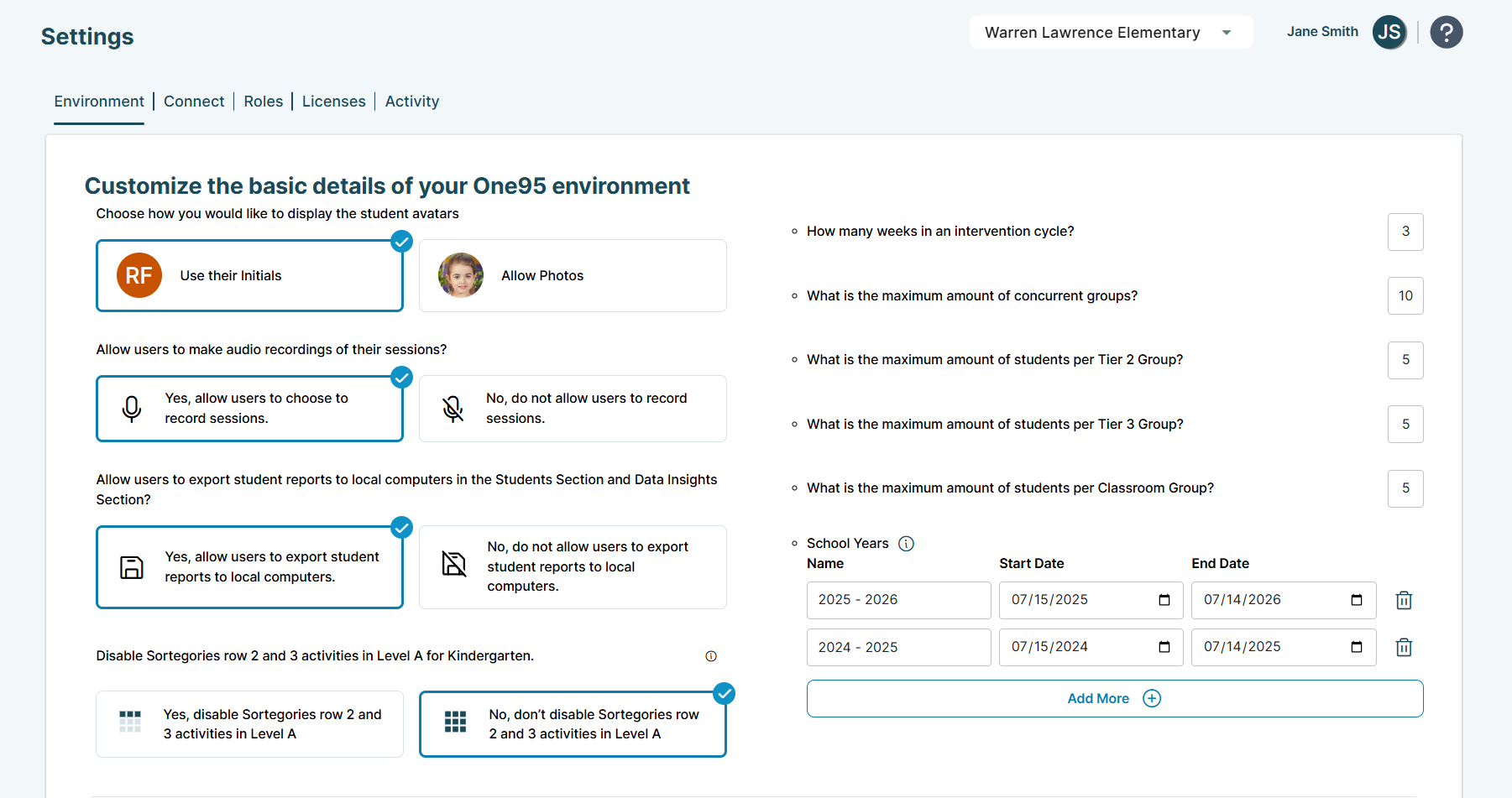
Access the Environment tab by selecting Settings from the navigation panel and clicking Environment in the menu at the top of the page.
The export setting is located at the bottom of the page.
Click on the Yes, allow users to export student reports to local computers. tile to allow users’ ability to export student reports.

Click SAVE once complete.
The Export button will be visible on the Data Insights page's Student Progress tab for all users with tab access (i.e., Administrator, District, School, and Teacher roles).
The Parent Report button is now visible on the Student Details page for all users.
The Export and Parent Report buttons are now visible on the Students page for all users.
Data Insights Page Exports
The Data Insights page’s Student Progress tab aggregates assessment data across the district, displaying a skill continuum with each column representing a skill.
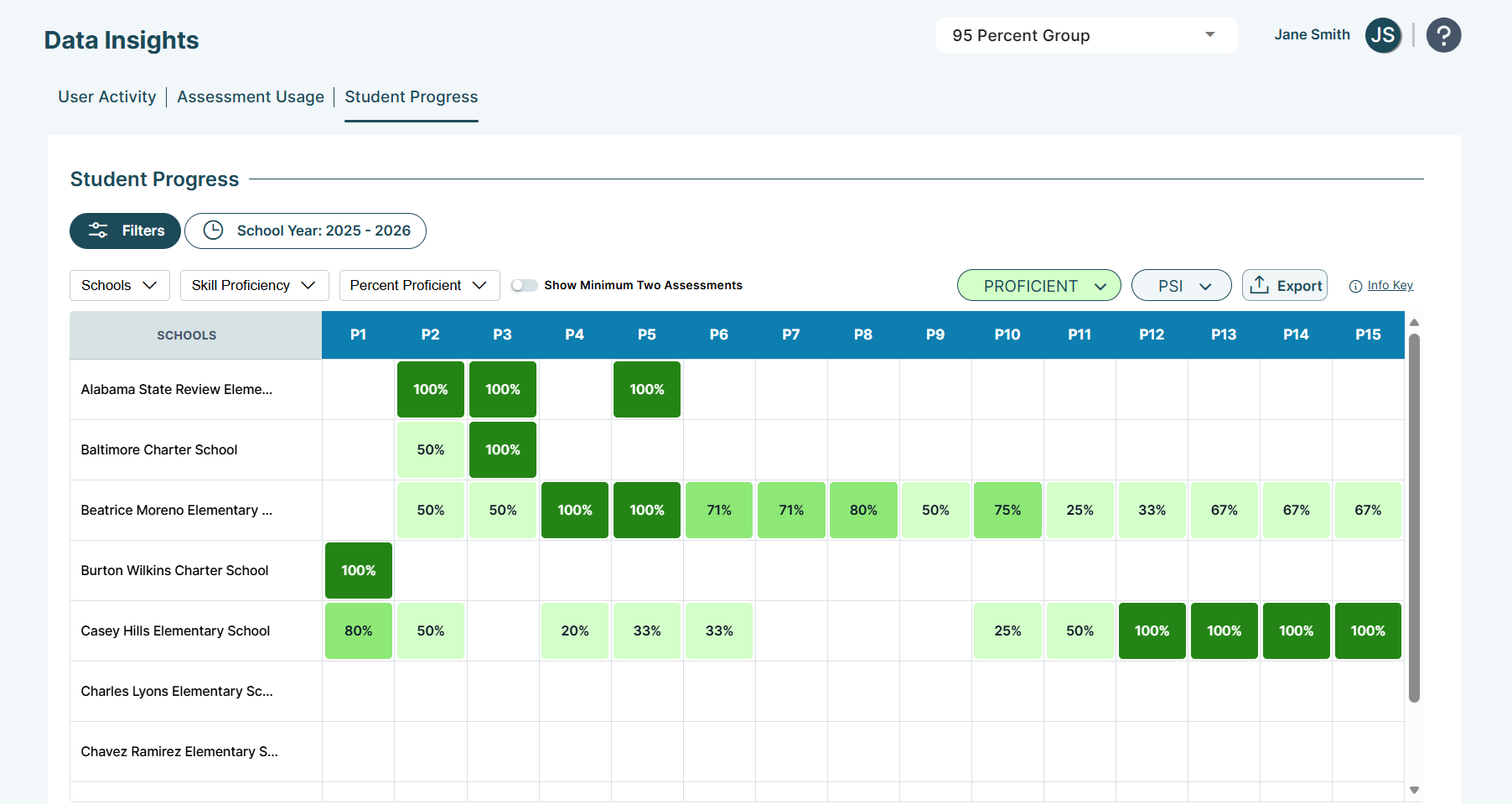
Access the Student Progress tab by selecting Data Insights from the navigation and clicking Student Progress in the menu at the top of the page.
By default, the table displays the percentage of students demonstrating Phonics Screener for Intervention™ (PSI) skill proficiency in each school in the current school year. Use the drop-downs above the table to toggle between data views.
Enable the Show Minimum Two Assessments toggle to filter assessment results for students on a specific skill only when students have a minimum of two assessments on the same skill. This removes data for students without multiple assessments, which may indicate that they were proficient and did not require intervention, or they were below proficient but left the program before receiving instruction.
Click the Export button above the table to generate a CSV report of students who scored below proficient (i.e., below and well below) three or more times on the same PSI or Phonological Awareness Screener for Intervention™ (PASI) skill.
Then, click the Customize Report button to configure the report parameters: date range and assessment type.
Select Date Range
Determine the assessment date range considered in the Select Date Range section.
Select a Report
Determine the skills considered in the Select a Report section: PSI or PASI.
Click Download Report once complete. The file will be downloaded locally.
Below proficiency reports display one row per student and eligible skill. Rows are sorted alphabetically by school name, and then alphabetically by students’ last names.
Each row includes students’ district, school, group information across all types (i.e., Tier 2, Tier 3, and Classroom), ID, names, and grade, along with the assessment type administered (i.e., PSI or PASI), and skill information.
From there, students’ last three skill assessments below proficiency are displayed from newest to oldest. The percentage score(s), administration date, and assessor are included for each assessment.
Additionally, each row captures the total number of skill attempts below proficient, the total number of weeks since the student’s first assessment below proficient, and the administration date itself.
To learn more about the Student Progress tab, reference our article on Data Insights Page.
Student Details Page Exports
The Student Details page provides a detailed view of phonics proficiency progress for each student.
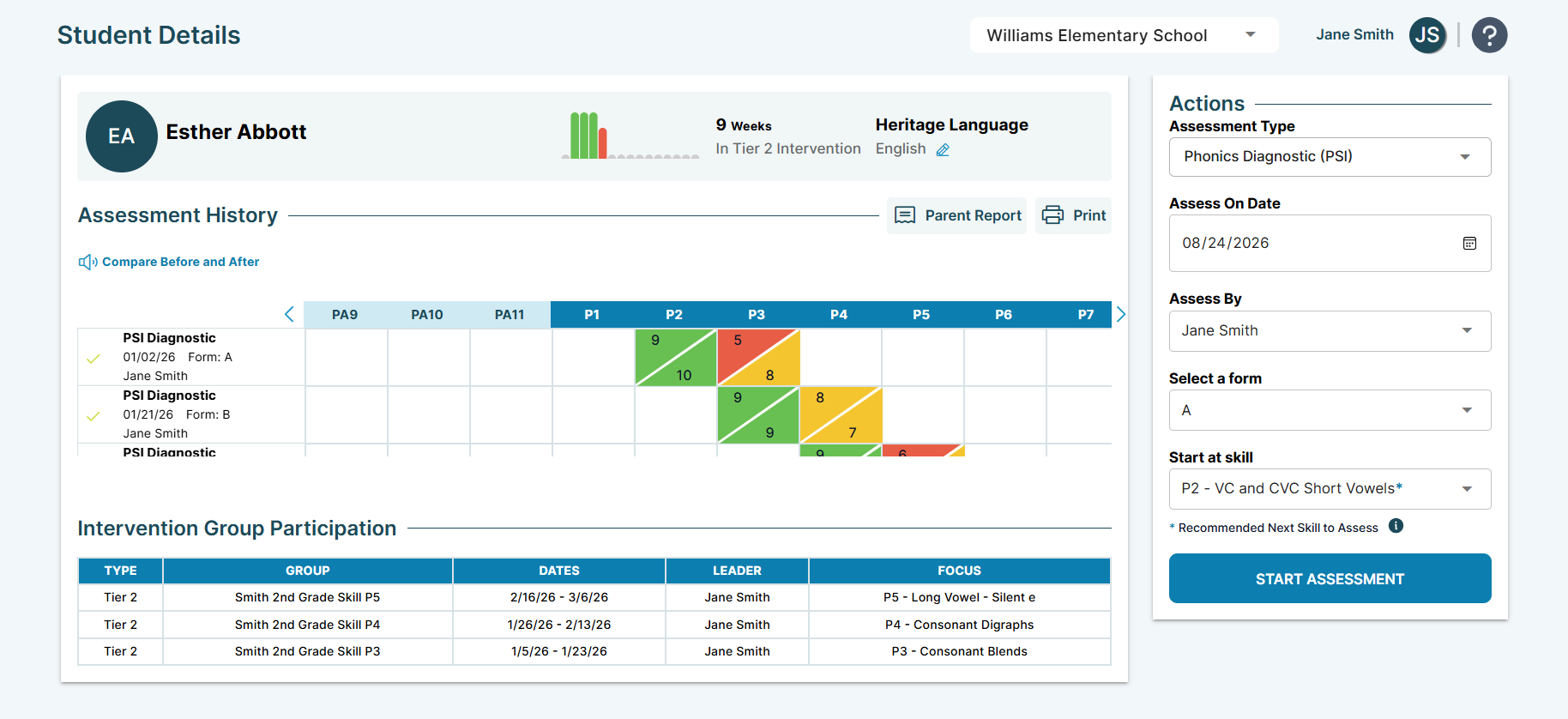
Access the Student Details page by clicking View Details on student info cards from the Today page's My Students tab.
Click the Parent Report button above the Assessment History table to generate a PDF report on the student's skill progress.
Parent reports detail PSI and PASI assessment results in a clear and accessible way, streamlining communication with families and caregivers.
Configure the parent report parameters: date range, assessment type, and language.
Click Create & Download once complete. The file will be downloaded locally. Parent reports include at least two pages in landscape orientation (i.e., horizontally).
To learn more about the Student Details page, reference our article on Student Details Page.
Students Page Exports
The Students page provides centralized access to students’ latest and historical assessment results.
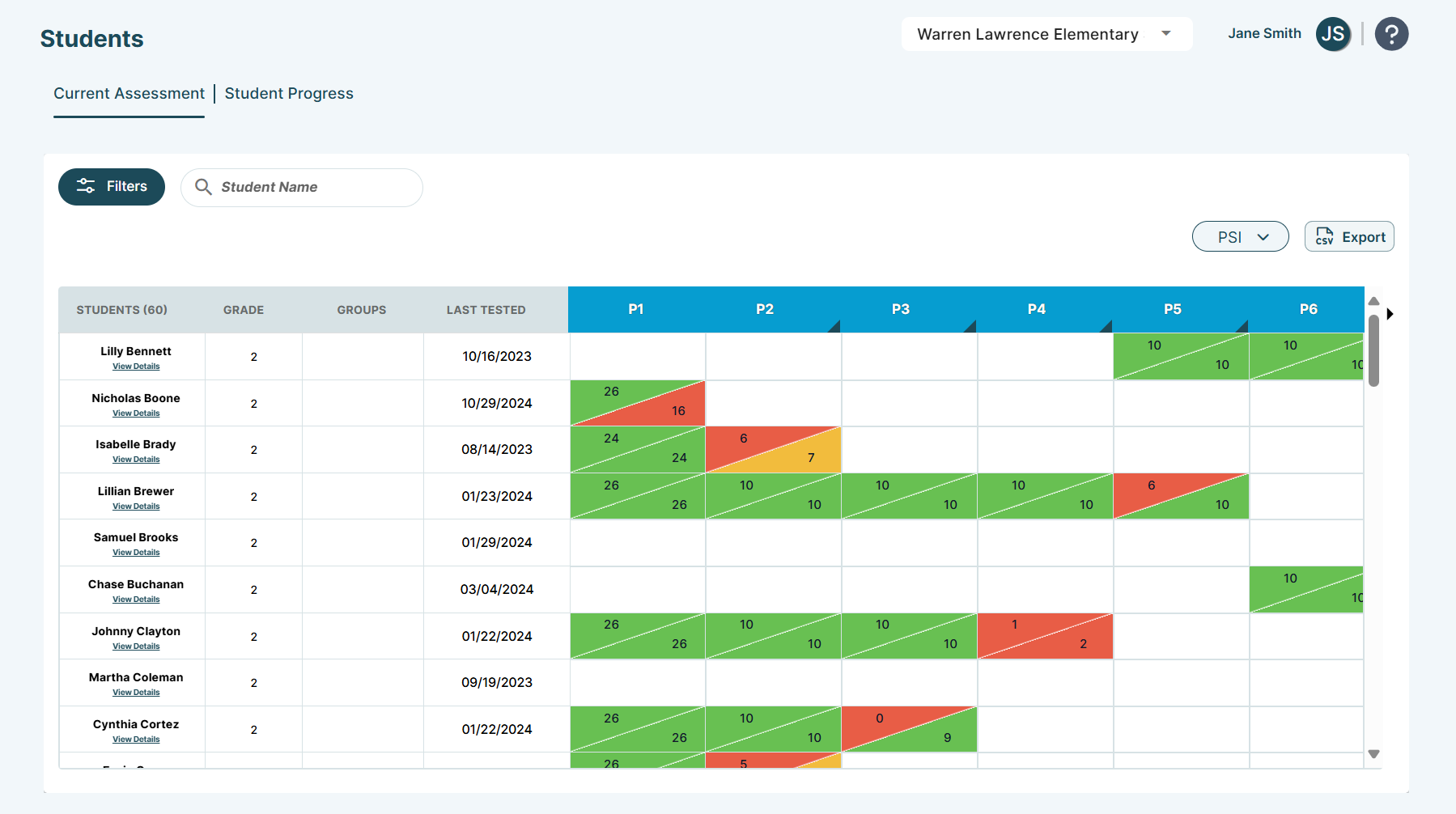
Access the Students page by selecting Students from the navigation panel.
The tables within the Current Assessment and Student Progress tabs display students across the school based on your role.
Apply filters to customize the export data by clicking the Filters button and expanding the filter panel. Filter students by active groups, grades, classroom teachers, and group leaders. Leverage as many or as few filters as necessary.
The Student Progress tab lists students' assessment history in the current school year, as defined by One95 Administrators in the Environment tab. Assessment data may be filtered based on the current default school year.
Drill down into school years based on your district's school year settings and custom date ranges via the filter panel to filter the historical assessment data considered.
Current Assessment
Export students’ latest saved PSI and PASI assessment results from the Current Assessment tab.
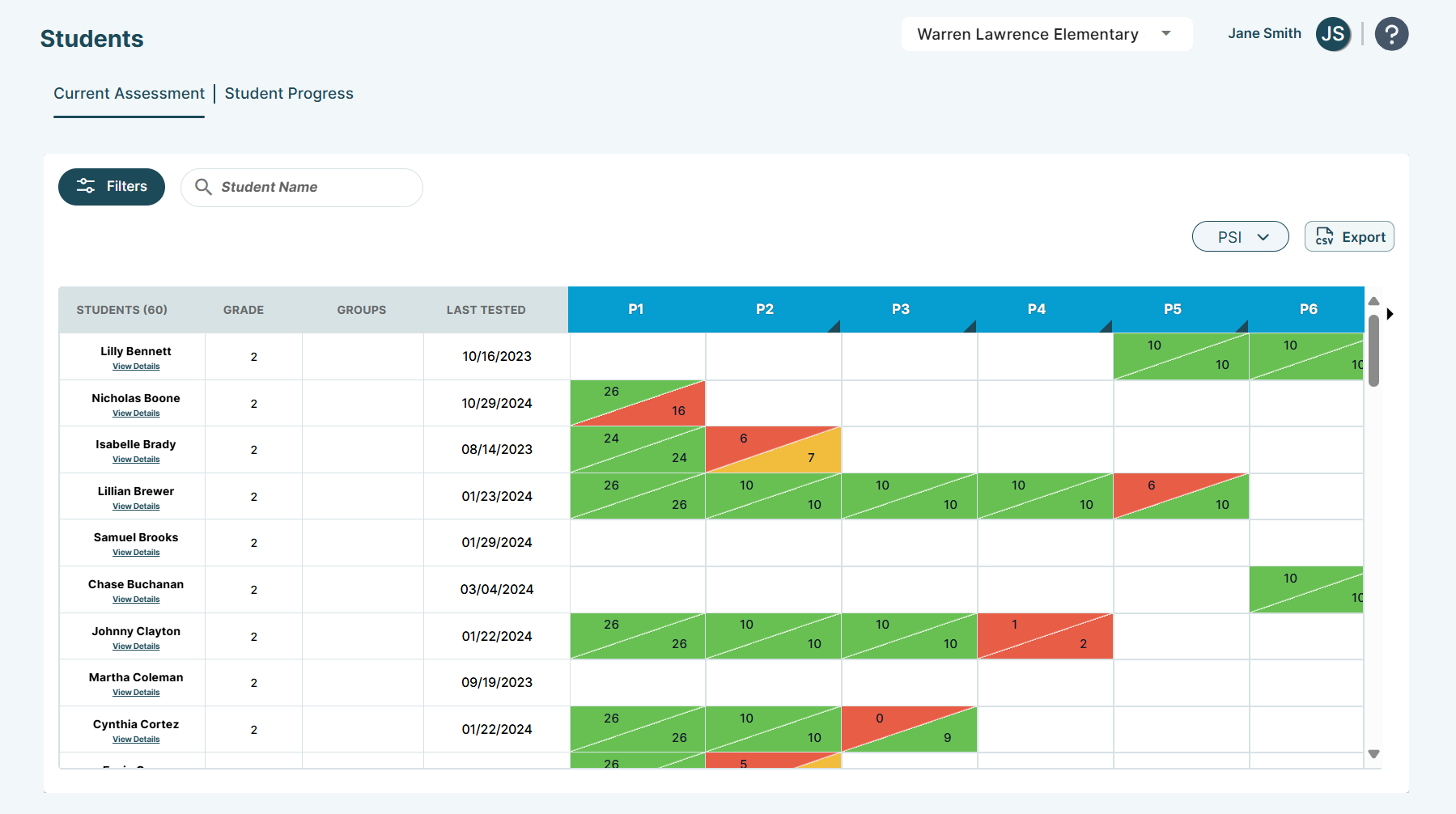
Click the Export button above the table to generate a CSV report of the data or filtered data subset.
Click the CSV button to download the report. The file will be downloaded locally.
CSV reports include the list of students in the school with current assessments, their results, and the remaining skills.
Reports display one row per student. Each row includes students’ names, ID, grade, and Tier 2 group information, along with the assessment type administered (i.e., PSI or PASI), skill names, percentage and fraction scores, and the most recent administration date.
Student Progress
Export students’ complete assessment history from the Student Progress tab.
There are two report types available: student and parent reports.
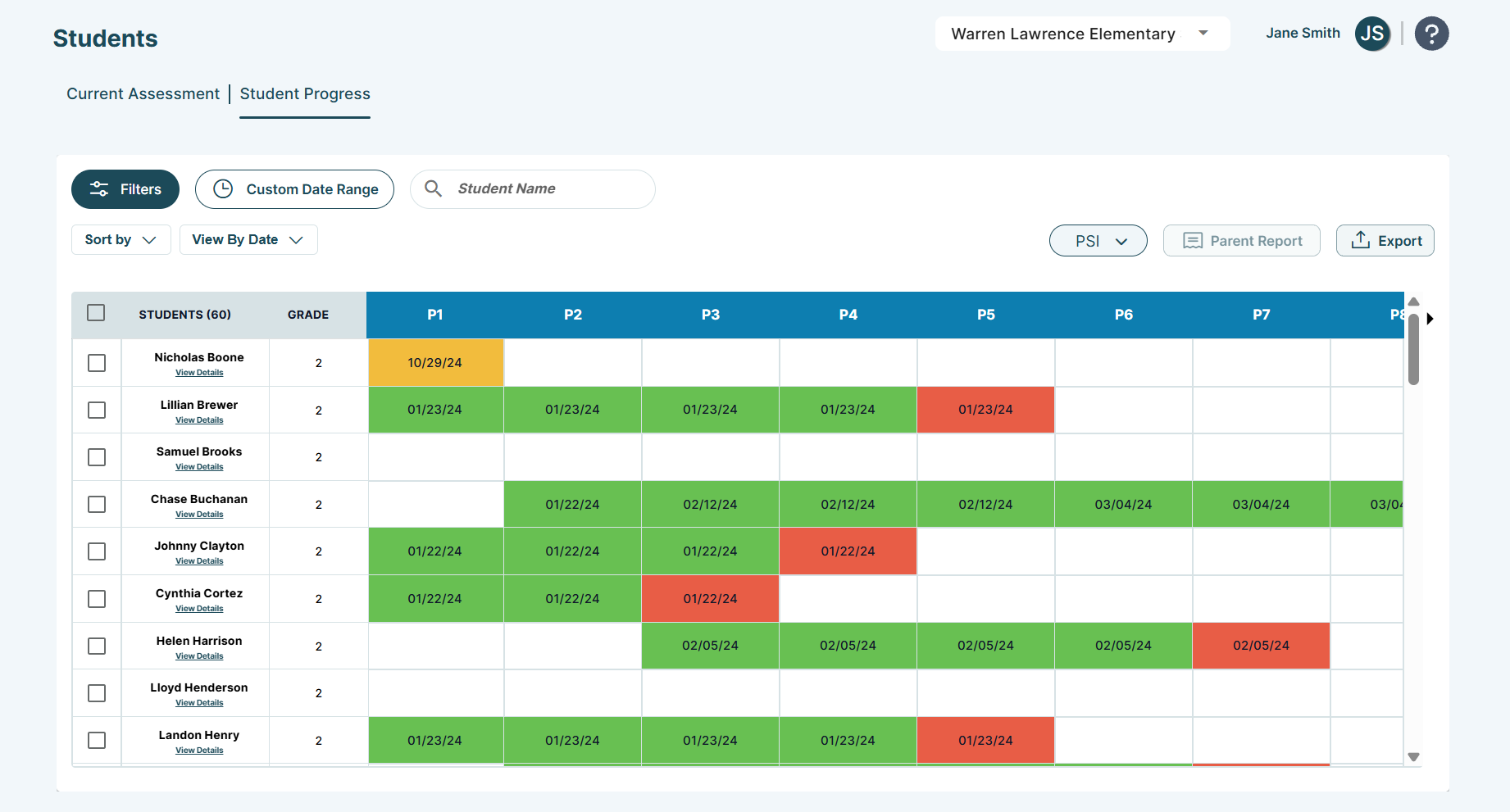
Student Reports
Click the Export button above the table to generate a PDF or CSV report of the data or filtered data subset.
The leftmost checkbox column can be used to select one or more students. Mark the checkbox in the table header to select all students displayed in the table.
Click the PDF and CSV buttons to download PDF and CSV reports, respectively. The file will be downloaded locally.
Reports include the list of students in the school with assessment history.
PDF Reports
PDF reports display one row per student in landscape orientation (i.e., horizontally). These reports can be saved and printed in color, but cannot be edited.
The latest assessment results and administration dates for each assessed skill are displayed. Each row includes students’ names, ID, grade, and color-coded summaries of proficiency percentages.
The bottom of the reports displays the total number of students working on each skill and the percentage of proficient students.
CSV Reports
CSV reports display one row per assessment.
Each row includes students’ names, ID, grade, and group information across all types (i.e., Tier 2, Tier 3, and Classroom), along with the assessment type administered (i.e., PSI or PASI), skill names, percentage and fraction scores, and the most recent administration date.
Parent Reports
Click the Parent Report button above the table to generate a single PDF containing individual reports on students’ skill progress.
Parent reports detail PSI and PASI assessment results in a clear and accessible way, streamlining communication with families and caregivers.
First, determine the scope of students by marking one or up to 12 checkboxes in the leftmost checkbox column. Mark the checkbox in the table header to select all students displayed in the table.
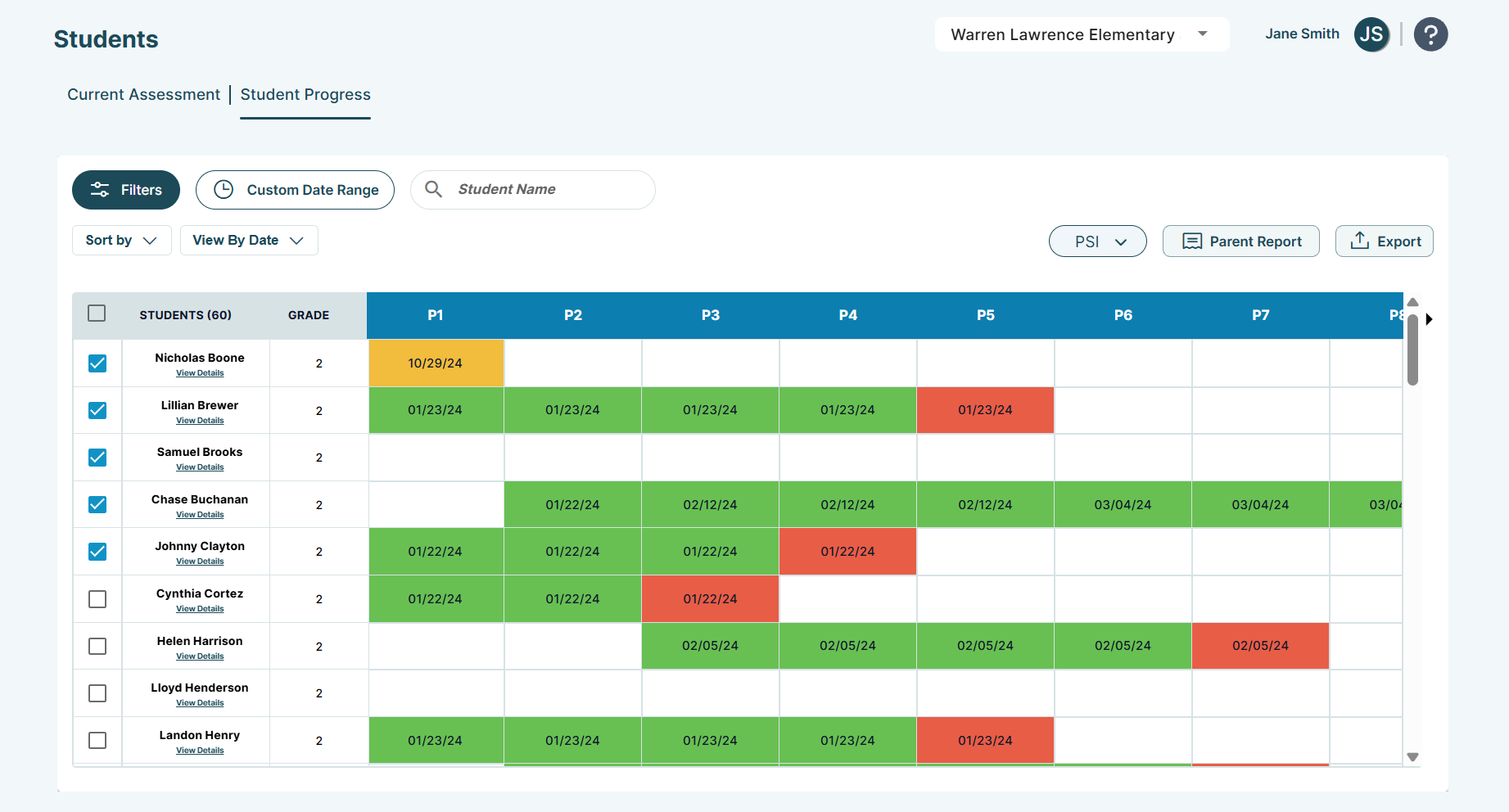
Then, click the Parent Report button to configure the parent report parameters: date range, assessment type, and language.
Click Create & Download once complete. The file will be downloaded locally.
Parent reports include at least two pages per student in landscape orientation (i.e., horizontally). If a student’s report has an odd number of pages due to their assessment history, a blank page will separate the report from the following page.
To learn more about the Students page, reference our article on Students Page.
95 Percent Group Support is here to help! Contact us via the knowledge base support form.
To learn more about submitting tickets, reference our article on One95 Support.
Was this article helpful?
That’s Great!
Thank you for your feedback
Sorry! We couldn't be helpful
Thank you for your feedback
Feedback sent
We appreciate your effort and will try to fix the article